Upload the source file. Choose the pages, layout, or other tool-specific options.
What this tool does
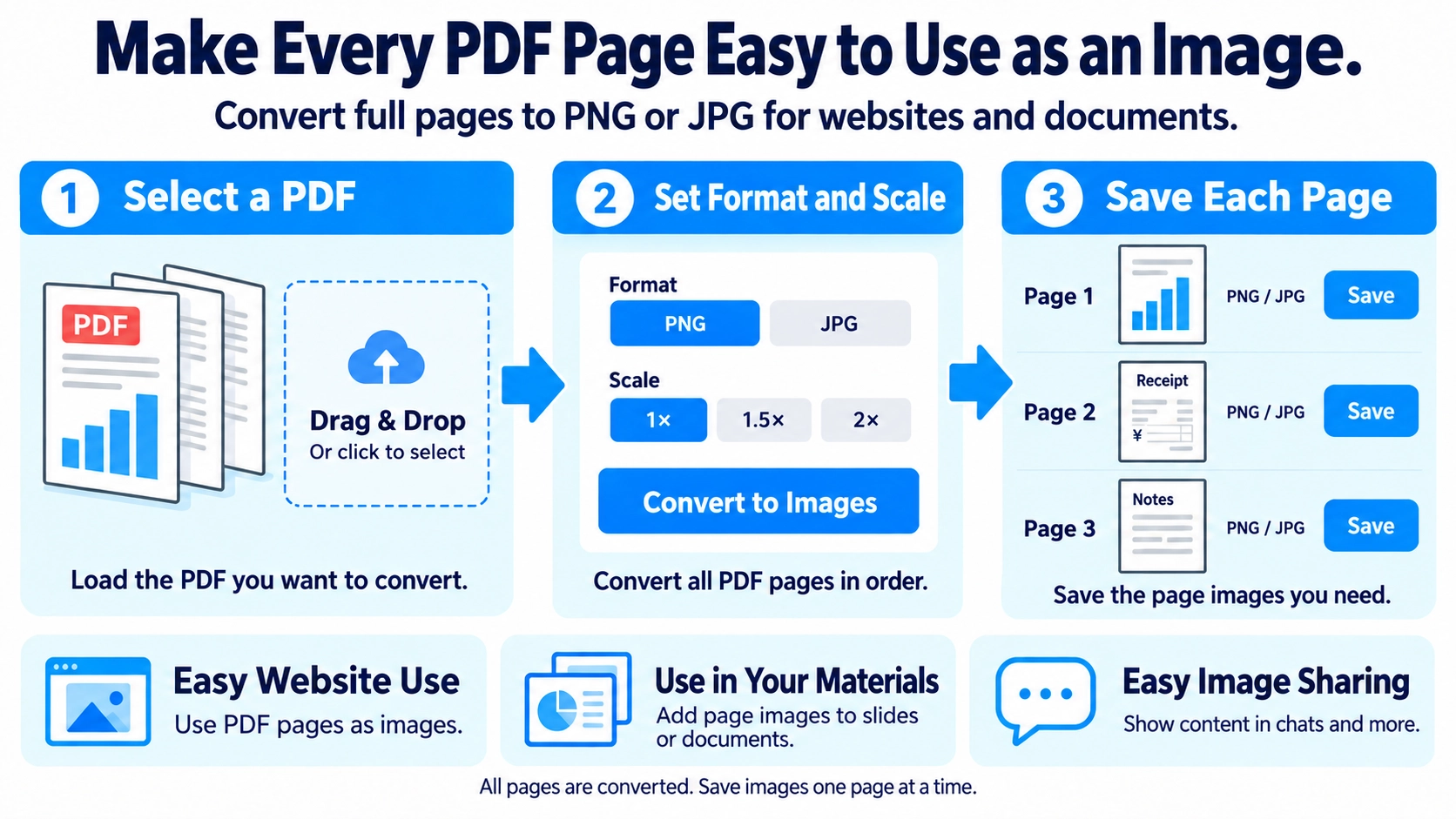
Convert each PDF page to PNG or JPG at 1×, 1.5×, or 2× scale. Preview and download the converted page images.
How to use it
- Upload a PDF whose pages you want to convert into images.
- Choose PNG or JPG and a render scale of 1×, 1.5×, or 2×.
- Click “Convert to image” to render the pages.
- Review the results and save the generated page images.
Supported input and notes
This tool converts every page of a PDF; it does not offer an option to export only selected pages. Higher output scale also increases image dimensions and processing time.
When it is useful
Useful for turning PDF pages into images for previews, presentations, or visual sharing.
Converting PDF pages to images is useful when a platform cannot display PDFs directly or when you need a page preview, social post, thumbnail, or web image. Choose PNG or JPG and an appropriate render scale for the final use.
Why Convert to Images
Each PDF page can be saved as a PNG or JPG file, making it easier to post, preview, embed, or send in places where image files are more convenient than PDFs.
PNG vs JPG
PNG
Good for text, diagrams, and screenshots where crisp edges matter, although files can be larger.
JPG
Good for photo-heavy pages and gradients when a smaller file is useful.
Neither format is always “higher quality.” Choose based on the page content: start with PNG for text-heavy material and JPG for photos, then compare readability and file size at the actual display size.
Output Scale
- Start at 1× and check whether text is readable at the final display size.
- Use 1.5× or 2× when small type or diagrams need more pixels.
- Remember that higher scale usually creates larger image dimensions and files.
- Avoid generating far more resolution than the destination actually displays.
Image Quality
PDF text and vector graphics can remain sharp at many zoom levels, while a raster image has a fixed pixel size. Once converted, very large zooming can reveal pixelation.
Choose a scale that matches how large the image will be viewed.
Common Uses
Social media
Share a page on a service that does not accept PDF documents directly.
Web pages
Embed selected pages as images in an article or landing page.
Chat previews
Let someone see the content immediately without opening a PDF viewer.
Thumbnails
Use the first page as a preview image in a document list.
Images vs Screenshots
Convert PDF to image
Renders the entire page at a consistent scale.
Screenshot
Captures only what is visible on screen and depends on zoom, crop, and display resolution.
For several pages that need consistent dimensions and complete page capture, direct conversion is usually easier to keep uniform.
Final Check
- Small text is readable
- No page edge is cut off
- JPG compression has not blurred thin text too much
- Image size is appropriate for the destination
Can I convert only selected pages?
This tool converts every page in the PDF and does not include page selection. To convert only certain pages, first use Extract PDF Pages to make a PDF containing only those pages.
What scale should I use for social media?
It depends on the page size and how much text it contains. Start at 1× and increase only if the result is too small to read.
Can I turn the images back into a PDF?
Yes, use Image to PDF. The new PDF will be built from image pages and will not necessarily have the same internal structure as the original.
Can text-heavy PDFs become harder to read after conversion to an image?
Yes. PDF text can stay sharp while zooming, but a converted image has a fixed pixel resolution. For small text, use a higher output scale and check the image at the size where it will actually be viewed.