Upload the source file. Choose the pages, layout, or other tool-specific options.
Extract only specified pages
What this tool does
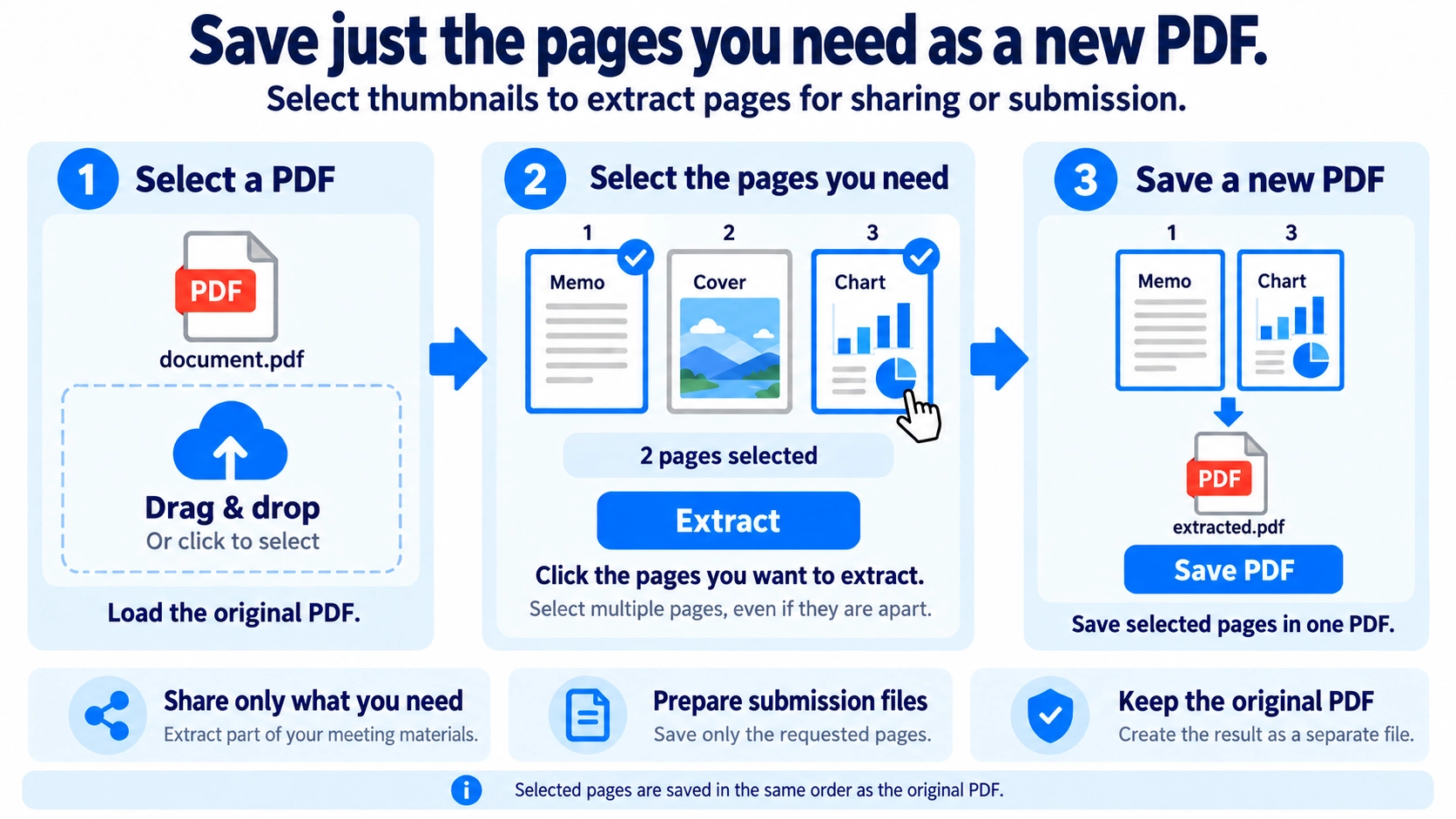
Select individual page thumbnails to extract the pages you need into a new PDF.
How to use it
- Select a PDF to open its page thumbnails.
- Click the pages you want to keep, or use the selection controls.
- Click “Extract” to create a PDF containing only those pages.
- Save the extracted PDF.
Supported input and notes
Select the pages you want to extract before exporting. The selected pages appear in the new PDF in their original source order, not the order in which you clicked them.
When it is useful
Useful for sharing just the relevant pages of a longer PDF document.
Page extraction creates a new PDF from only the pages you select. It is ideal when you do not want to split the entire document but need a smaller version for a specific recipient or task.
Page Extraction
You choose pages from the source PDF and create a separate PDF containing only those pages. The original document can remain untouched while you make a focused copy for sharing or submission.
Common Uses
Meeting packets
Share only the pages relevant to one participant.
Applications
Extract only the pages requested by the recipient.
Training materials
Create a handout from one chapter or selected exercises.
Internal sharing
Make a smaller PDF that contains only the pages needed for a particular team.
Avoid Mistakes
- Open the source PDF and identify the exact content you need.
- Check whether printed page numbers differ from the viewer’s page count.
- Click the page thumbnails you want to include in the extracted PDF.
- Open the new PDF and verify that every required page is present and in the expected order.
Extract vs Split vs Delete
Extract pages
Choose what you want to keep and create a new PDF from those pages.
Split or delete
Split creates multiple outputs; delete removes unwanted pages from the document structure.
If your goal is “make a new PDF from only these pages,” extraction is usually the clearest option.
Page Order
This tool exports selected pages in their original source order. It does not reorder them during extraction. Use Reorder PDF Pages afterward if you need a different sequence; if pages come from separate PDFs, merge the source files first.
Original PDF
Yes, especially when the extracted file is for a temporary submission or one recipient. Keeping the source makes it easy to create another selection later without reconstructing the document.
Before You Start
- No required page is missing
- No unnecessary or sensitive page is included
- The order makes sense to the recipient
- The filename clearly identifies what the file contains
Can I extract non-consecutive pages?
Yes. Click multiple non-consecutive pages. The output keeps those selected pages in the same order they had in the source PDF.
Is extracting the same as copying a screenshot?
No. Extraction creates a PDF from selected PDF pages; it does not capture the screen as an image.
Can I add another PDF after extracting?
Yes. Use Merge PDF if you need to append or combine another document.
Does extraction reduce quality?
This tool copies the selected PDF pages into a new PDF without rasterizing them or lowering image resolution.
How is page extraction different from printing only selected pages?
A print range controls what is sent to paper or a PDF printer. Page extraction creates a new PDF containing only the pages you want, which is useful when you need to save or share a smaller document.