Upload the PDF file. Run text extraction.
What this tool does
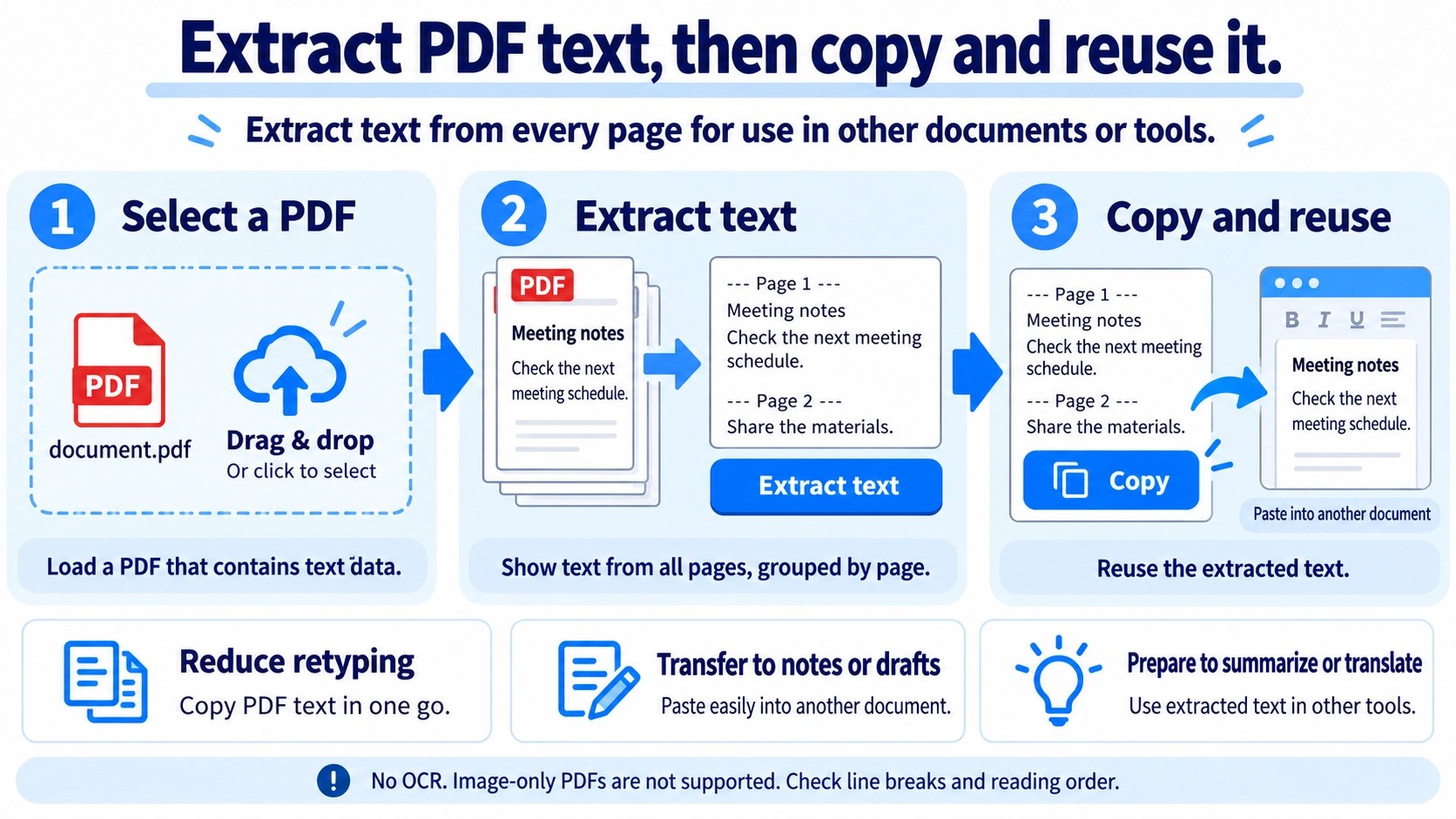
Extract selectable text from a PDF page by page, then review and copy the result. Scanned image-only PDFs may not contain extractable text.
How to use it
- Upload a PDF containing selectable text.
- Click “Extract text”.
- Review the text extracted from each page.
- Click “Copy” to reuse the result.
Supported input and notes
Works best when the PDF contains real, selectable text. Scanned image PDFs may yield incomplete or no text. Layouts can also affect extracted whitespace and line breaks.
When it is useful
Useful when you want to reuse or edit the text inside a PDF document.
PDF text extraction works only when the PDF contains text data. An image-only scan with no text layer cannot be converted to text by this tool.
Text Extraction
When characters are stored as text objects in the PDF, the tool can read and output them as copyable text. This is useful for notes, research, drafts, and moving content into another workflow.
Common Uses
Reuse text
Copy passages into notes or a working document.
Search content
Turn a long PDF into text that is easier to search.
Organize material
Move meeting notes or report text into another tool for review or summarization.
Reduce retyping
Avoid manually typing text that already exists as selectable PDF text.
Text Extraction vs OCR
Text extraction
Reads text data that already exists inside the PDF.
OCR
Recognizes letters visually from scanned or photographed images.
An image-only scan with no text layer contains no text for this tool to extract. OCR is required to recognize characters from the image.
Uncopyable Text
This tool extracts text data that PDF.js can read from every page. It cannot extract text from an image-only scan with no text layer or from letters stored only as vector shapes.
It also does not remove copy restrictions or password protection. If the result is empty, garbled, or out of reading order, use OCR or return to the source document when possible.
Tables and Columns
PDFs store visual positions, and the internal reading order does not always match the way a human follows columns and tables. As a result, line breaks or sequence may be imperfect after extraction.
Compare important text with the source PDF and clean up the reading order when needed.
Verify the Text
- Check that the output is not empty.
- Compare the beginning, middle, and end with the source PDF.
- Review tables, columns, and special symbols more carefully.
- Before quoting or publishing, confirm that the extracted wording still matches the original.
Incomplete Extraction
- Can you select the text in a PDF viewer?
- Is the document a scanned image?
- Does it contain unusual symbols or embedded fonts?
- Does it use complex tables, columns, or vertical writing?
Can this extract text from a scanned PDF?
No. If the PDF contains only page images and no text layer, this tool cannot extract the visible words. Use OCR instead.
Why are line breaks wrong?
Visual text positions in the PDF do not always map cleanly to paragraphs in plain text.
Can it convert a table directly to Excel?
The feature focuses on text extraction and does not guarantee reconstruction of table rows and columns.
Can I quote the extracted output as-is?
Verify it against the original because characters, order, and line breaks may be imperfect.
Why does extracted PDF text sometimes contain garbled characters?
A PDF can display correctly while storing fonts or character mappings in a way that does not translate cleanly to plain text. Embedded or unusual fonts can cause substitutions, so compare extracted text with the source before reusing it.