Upload the source file. Choose the pages, layout, or other tool-specific options.
What this tool does
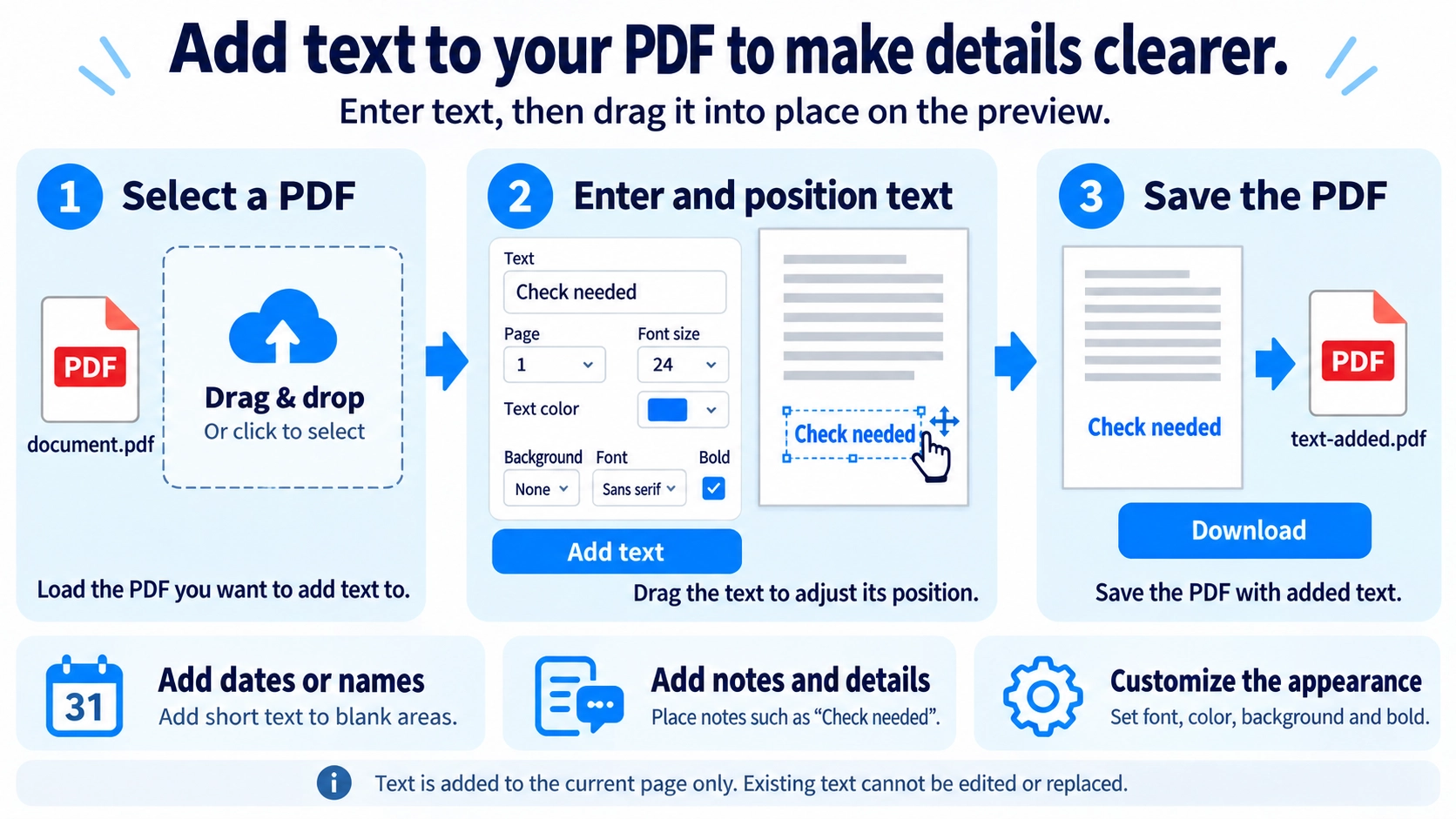
Place additional text at a chosen position on a PDF page. Adjust the font size, color, and placement for notes or short form entries.
How to use it
- Upload a PDF and enter the text to add.
- Choose the target page, font size, text color, and background settings.
- Position the text on the page preview.
- Click the add-text action and download the modified PDF.
Supported input and notes
Text is added to the currently displayed PDF page. To add text to more pages, repeat the operation for each page and check the placement after export.
When it is useful
Useful for adding labels, notes, or brief annotations to a PDF page.
Adding text to a PDF places new text on top of an existing page. It is useful for short entries such as names, dates, notes, and reference numbers, but it is not the same as rewriting the original document text.
Common Uses
Use it for filling a short blank, adding a date, placing a note, or entering a small piece of information without rebuilding the source document.
Text Examples
Name or company
Fill a short blank on a form or internal template.
Date
Add a created, checked, or submitted date.
Note
Place labels such as “Revised” or “Needs review.”
Reference number
Add an ID, case number, or short identifier.
Text Placement
- Find the target blank or margin area.
- Choose a font size close to nearby text.
- Use a text color that is readable against the background.
- Position the text so it does not cover lines or existing words, then review the exported PDF.
Add Text vs Edit Text
Add text
Places new text over the page and works well for short additions.
Edit original text
Changes the document’s existing words or layout, which is a different kind of editing.
Replacing a paragraph or fixing a typo inside the original text may look awkward if you only place new text on top.
Text Alignment
This tool maps the preview position to PDF page coordinates and saves the added text as an image overlay. Check the exported PDF as well to confirm the final position and size.
Form Filling
If the recipient requires a specific form-filling method or the PDF contains official interactive form fields, follow those instructions. A visual text overlay may not be the required submission method in every workflow.
Before You Start
- New text does not cover existing content
- Font size is reasonably consistent with the form
- Names and dates are correct
- The text remains readable when printed
Can I directly edit or replace the original PDF text?
This tool places new text on top of the PDF; it does not rewrite the original text objects like a word processor. It is suited to short notes, corrections, names, dates, and other supplemental text.
If you need to delete or rewrite the original paragraphs themselves, use a PDF editor designed for direct content editing.
How do I put the same text on every page?
This tool adds text to the one page currently shown in the preview for each export. For the same label on every page, use the Watermark PDF tool instead.
Can I add a handwritten signature?
Use the PDF signature tool for a hand-drawn signature.
Will adding text reflow the document?
The text is positioned on the page rather than reflowing the original document, so placement matters.