Upload the source file. Choose the pages, layout, or other tool-specific options.
Split each page into an individual PDF and save as ZIP
What this tool does
Split a PDF into separate one-page files, either for all pages or selected pages, and download the results as ZIP.
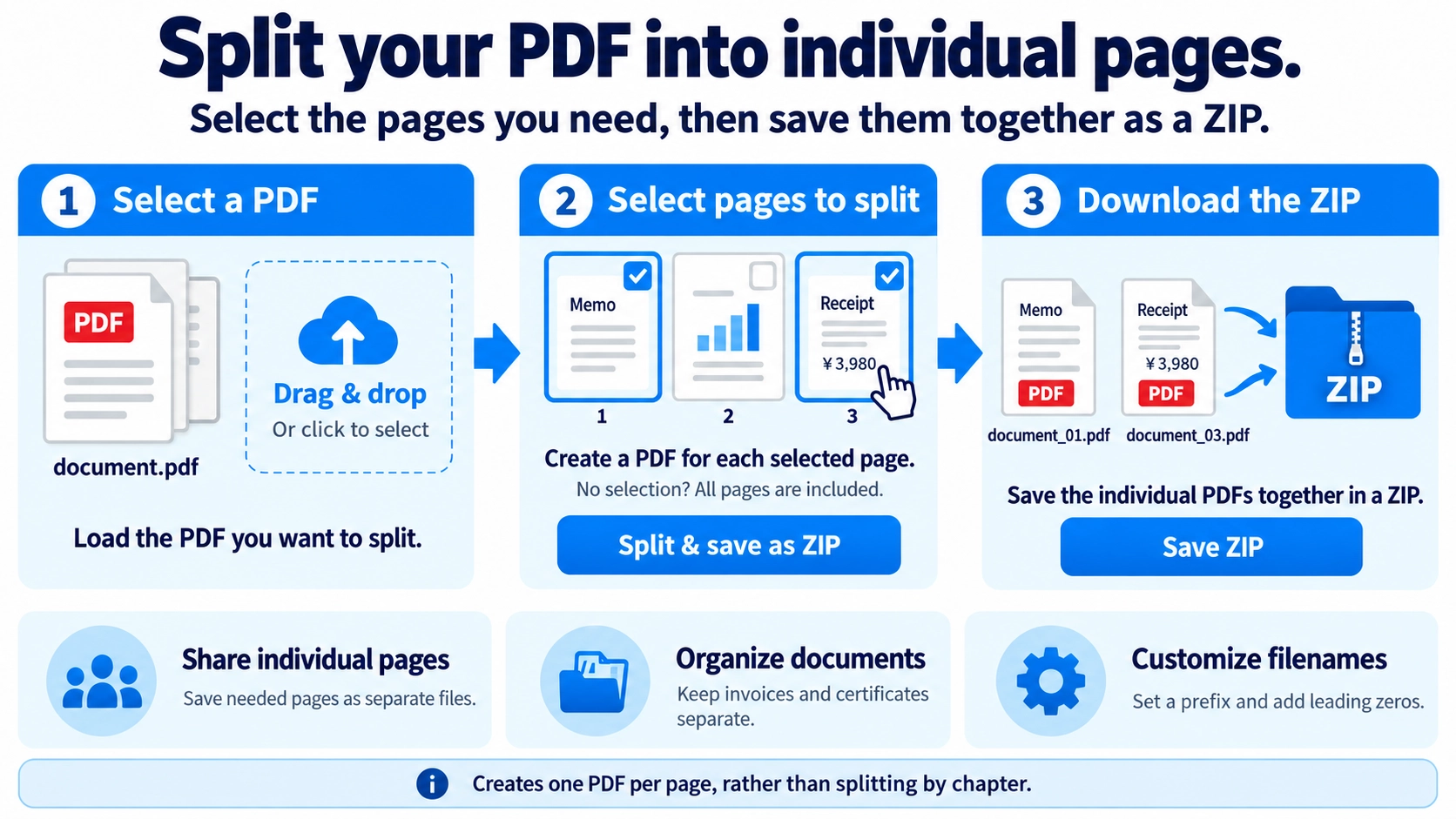
How to use it
- Select a PDF and choose the pages to split out.
- Enter a filename prefix and optionally zero-pad page numbers.
- Click “Split and save ZIP” to create one PDF per selected page.
- Download the ZIP containing the individual pages.
Supported input and notes
Large PDFs may take longer to process. Check the page selection and resulting filenames, including prefix and numbering, before saving the ZIP.
When it is useful
Useful for delivering or filing individual PDF pages separately.
This splitter creates one-page PDF files. You can split every page, or select only the pages you want and create a separate one-page PDF for each selected page.
PDF Splitting
Each selected source page becomes its own one-page PDF. With no pages selected, every page is split. With pages selected, only those pages are exported. This tool does not create multi-page chapter files from page ranges.
Keep the original PDF until you have checked the split files so you can easily redo the process if needed.
Common Uses
Distribute individual pages
Turn selected pages from a manual, worksheet, invoice batch, or similar document into separate one-page PDFs.
Save one page per file
Separate invoices, certificates, or forms that are currently in one PDF.
Process only selected pages
Select only the pages you need from a long PDF and export each selected page as its own PDF.
Organize files
Create smaller, easier-to-manage documents for folders or workflows.
Before Splitting
- Open the PDF and identify the pages you actually need.
- Check whether printed page numbers differ from the PDF viewer page count because of covers or front matter.
- Click the page thumbnails you want to split. If you select none, the tool splits every page.
- Open the downloaded ZIP and verify that the expected pages were created.
Split vs Extract
Split PDF
Creates multiple PDF files from one document, often one file per page.
Extract pages
Selects the pages you want to keep and creates one new PDF from them.
Think “break everything apart” for splitting and “keep only these pages together” for extraction.
Page Quality
This tool copies each selected PDF page into its own PDF without rasterizing the page or lowering image resolution.
File Size
Each output file may be smaller because it contains fewer pages, but the total size of all split files is not guaranteed to be dramatically smaller than the original. Splitting is not a dedicated compression method.
File Organization
- Use filenames that show page numbers or sections
- Group outputs by chapter, person, or destination
- Keep the source PDF as a backup
- Review each file before sharing to avoid exposing unnecessary pages
Can I split out just one page?
Yes. Select just one page and split it. The Extract PDF Pages tool can also create a new PDF containing that one page.
Can I split a 100-page PDF?
Large files can require more browser memory. If performance is poor, select fewer pages at a time and run the split in several batches.
Can I combine the split files again?
Yes. Use Merge PDF to put them back together in the order you choose.
Why is the result downloaded as a ZIP?
Splitting creates multiple files, so a ZIP makes them easier to download together.
How should I name the PDFs after splitting a document?
A pattern such as “report_01”, “report_02”, and so on makes the original document and page order easier to recognize. If a school, client, or application system has a filename rule, follow that rule first.
Does splitting a PDF change my original file?
The tool creates separate output files rather than turning your original PDF into the split results. Keep the source PDF as a backup until you have checked every output file.