Upload the source file. Choose the pages, layout, or other tool-specific options.
Multiple images supported
What this tool does
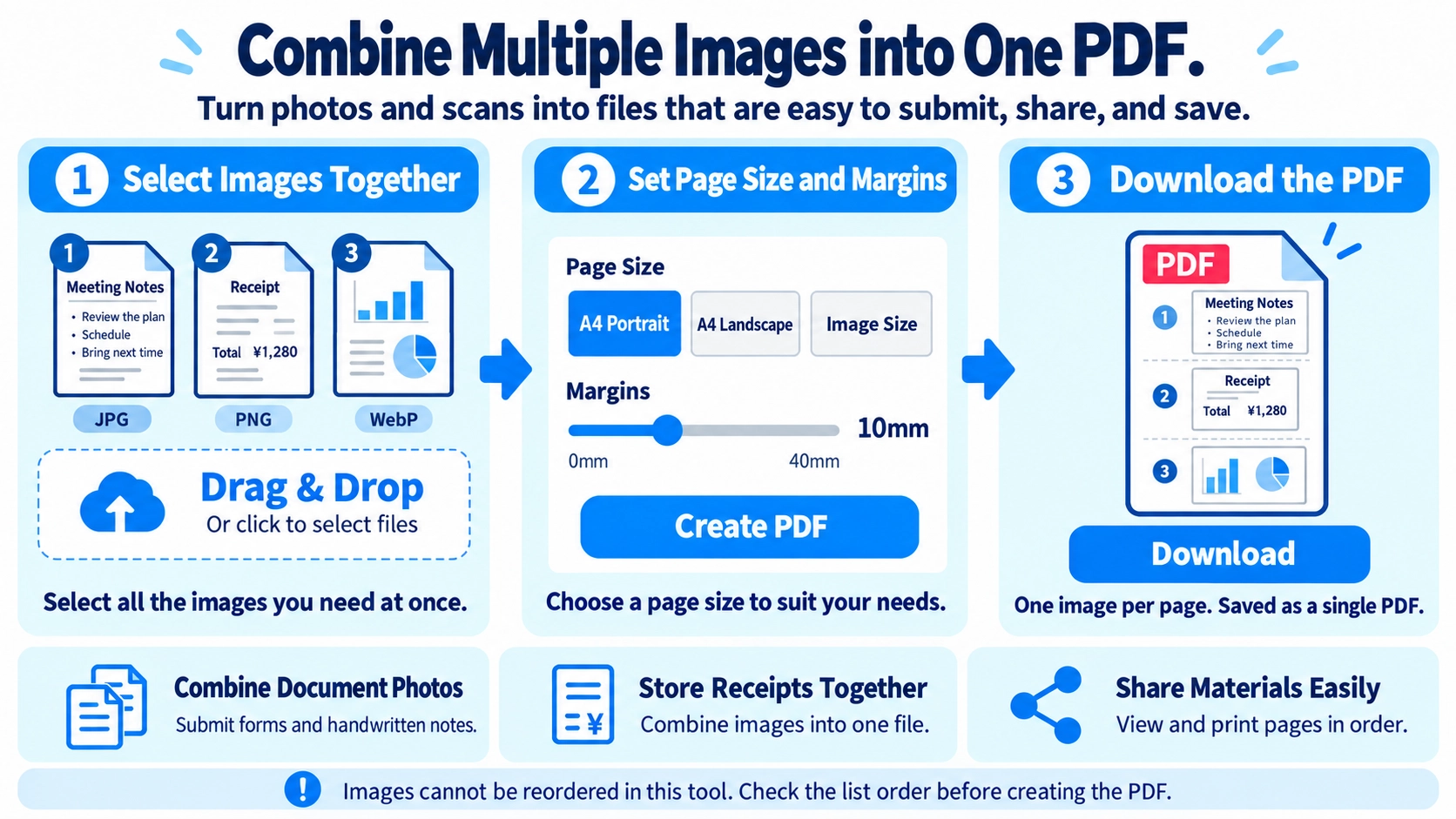
Convert JPG, PNG, WebP, and other supported images into a PDF. You can combine multiple selected images into one document.
How to use it
- Select all the images you want to include in the PDF at the same time.
- Check their order in the file list; this tool does not have a built-in reorder control.
- Choose A4 Portrait, A4 Landscape, or Image Size and set the margins.
- Click “Create PDF” to generate and download the document.
Supported input and notes
You can select multiple images, but there is no control to rearrange their order inside this tool. Check the file list before generating the PDF. Page size and margins affect how each image fits.
When it is useful
Useful for collecting scans, receipts, or photos into a single PDF document.
Image to PDF is useful for turning JPG, PNG, and WebP files into one document that is easier to submit, print, or share. Check the file-list order, orientation, and readability before creating the PDF.
Why Use PDF
A set of images becomes one document that can be viewed and printed in sequence. This is useful for photographed paperwork, receipts, scanned pages, portfolios, and submission files.
Common Uses
Phone photos of documents
Combine photographed forms, homework, or handwritten notes into one PDF.
Receipts
Select receipt images in the intended date order and combine them into one PDF for record keeping.
Artwork or reference images
Create one PDF from a series of images or scans.
Submission requirements
Convert images when a website asks for a PDF instead of separate image files.
Image Order
- Choose which image should become page 1.
- The tool uses the images in the order shown in the file list and does not provide an in-tool reorder control. Confirm the displayed order before creating the PDF.
- Check for sideways or upside-down images.
- Create the PDF and review every page for missing or duplicate images.
Image Quality
The source image resolution and compression strongly affect the final appearance. A small image may look blurry when displayed large on a PDF page.
For photographed documents, confirm that the text is readable before conversion.
Mixed Image Formats
The file input accepts images that the browser can load, and the selected images are drawn onto PDF pages. You do not need to convert JPG and PNG files to one common image format before combining them.
Because the images are rendered onto PDF pages, do not rely on the PDF conversion to preserve image-specific properties such as transparency. Check the finished PDF visually.
PDF vs ZIP
Turns images into ordered document pages that are easy to read and print as one file.
ZIP
Keeps the original image files separate inside an archive.
Choose PDF when the recipient should read the images as one document; choose ZIP when they need the original files individually.
Before You Start
- Image order is correct
- Document photos are sharp enough to read
- No image is sideways or upside down
- No unnecessary or sensitive image was included by mistake
Can I combine multiple images into one PDF?
Yes. Select multiple images at the same time in the file picker and the tool places them into one PDF in the order shown in the file list. There is no in-tool add-more or reorder control, so select the full set together and verify the displayed order before creating the PDF.
Will converting JPG to PDF make the file smaller?
Not necessarily. PDF creation is not the same as image compression.
Can I use photos taken on a phone?
Yes, if they are available as supported image files. Check shadows, blur, and perspective before submission.
Can I reorder pages after creating the PDF?
Yes. Open the result in the PDF page reorder tool.
Can I mix portrait and landscape photos in one PDF?
Yes, but pages can look inconsistent because each image has a different orientation or aspect ratio. If the PDF must look uniform, rotate or resize the images before creating it.
What determines the printed size of a photo after it becomes a PDF?
With A4 Portrait or A4 Landscape selected, the PDF page is fixed to A4 and each image is scaled to fit inside the selected margins. With Image Size selected, the PDF page follows the image dimensions. Printer scaling can still change the physical print size, so check print preview.