Paste CSV or tab-separated text, set the delimiter and header option, then copy the generated Markdown table.
What this tool does
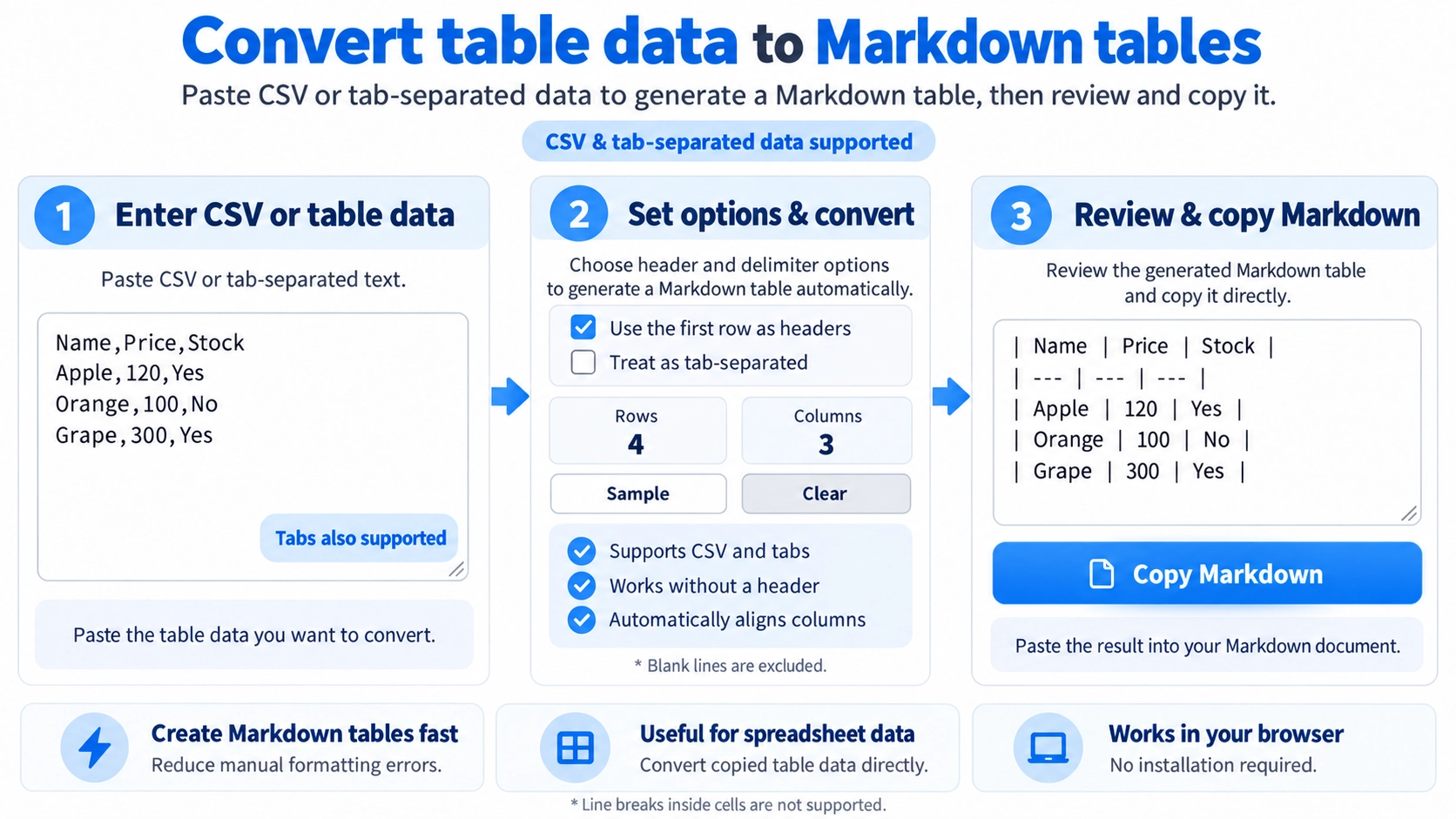
Convert CSV or tab-separated text into a Markdown table. Choose whether the first row is a header, then copy the generated Markdown.
How to use it
- Paste CSV or tab-separated text into the input field.
- Select tab-separated mode if needed, and choose whether the first row is a header.
- Review the automatically generated Markdown table.
- Click “Copy Markdown” to use it in your document.
Supported input and notes
Line breaks and special characters within cells may render differently depending on the Markdown editor. Check the output in the tool where you plan to use it.
When it is useful
Useful for creating tables in README files, documentation, and Markdown articles from spreadsheet data.
Comma and Tab Input
Switch between comma-separated and tab-separated input to create a Markdown table from CSV-like data or copied spreadsheet cells.
Comma Separated
Reads commas as column separators and supports commas inside double-quoted values.
Tab Separated
Reads tabs as column separators, which is useful for data copied from a spreadsheet.
Choose How the First Row Is Used
With Header
The first row becomes the Markdown table header.
Without Header
All input rows remain data, and automatic column labels are added.
Uneven Rows Are Padded
The widest row determines the number of columns. Shorter rows receive empty cells so the Markdown table stays aligned.
Vertical Bars Are Escaped
A | inside a cell is escaped so it is not mistaken for a Markdown column separator.
No Multiline Cells
The input is read one line at a time. A quoted cell cannot contain a line break, even though quoted commas are supported.
Empty Rows Are Skipped
Blank rows are omitted, and the detected row and column counts are shown on the page.
FAQ
Can I paste data copied from a spreadsheet?
Yes. Use tab-separated mode.
Can I use data without a header row?
Yes. Turn off the first-row header option and automatic column labels are added.
Can a value contain a comma?
Yes, in comma-separated mode when the value is enclosed in double quotes.