Paste CSV data and click “Convert to Table” to preview it. You can also copy the table as HTML.
What this tool does
Paste CSV data and preview it as a readable HTML table. Handles quoted fields containing commas and lets you copy the generated table markup.
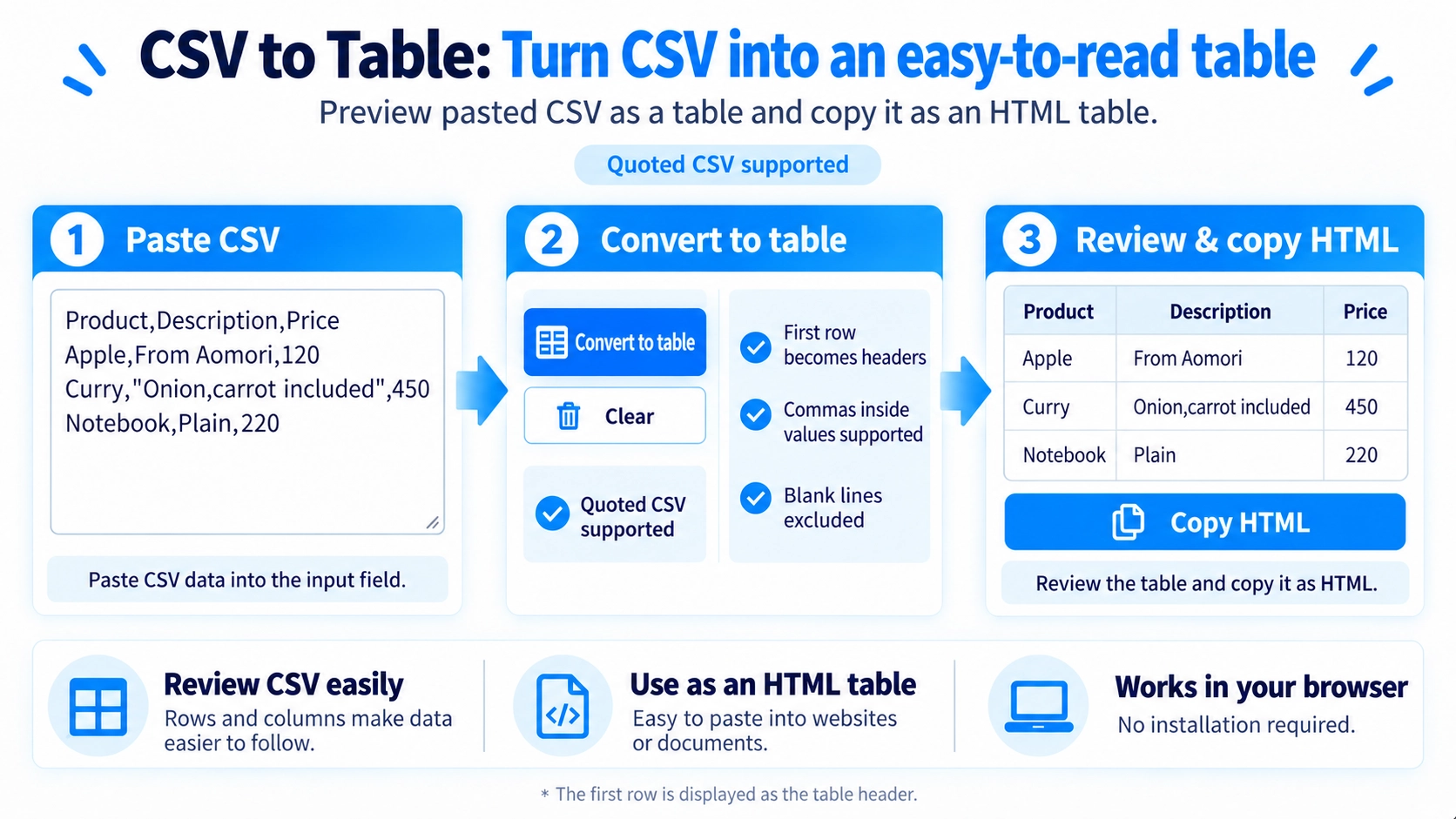
How to use it
- Paste comma-separated data into the input field.
- Click “Convert to Table” to display a table with the first row as the header.
- If needed, correct the CSV and convert it again.
- Click “Copy HTML” to copy the generated table markup.
Supported input and notes
The tool reads comma-separated CSV, including commas and line breaks inside double-quoted fields. Unclosed quotes can cause a CSV error, so check the source data if conversion fails.
When it is useful
Useful for checking CSV data as a table and generating HTML table markup for websites or documents.
View CSV as a Table
Paste CSV data to display it as a table in the browser. The first row becomes the column header, and later rows become table data.
Quoted Values Are Supported
Commas Inside Values
A comma inside a double-quoted value stays in the same cell instead of creating another column.
Line Breaks Inside Cells
A line break inside a double-quoted cell is kept as part of that same cell.
Quotes Are Read Correctly
Two double quotes inside a quoted CSV value are read as one double quote. An unclosed quote is reported as a CSV error.
Uneven Rows Still Display
If rows have different numbers of columns, the table uses the widest row and fills missing cells with blanks.
Empty Rows Are Skipped
Rows where every cell is empty are omitted from the displayed table.
Copy as HTML
The generated table can be copied as HTML for use in an HTML file or editor.
FAQ
Can a value contain a comma?
Yes, when the value is enclosed in double quotes.
Is the first row treated as normal data?
No. It becomes the table header.
Can I copy the table as HTML?
Yes. The generated table HTML can be copied.