Provide the input text, data, or file. Choose the tool options that match your goal.
What this tool does
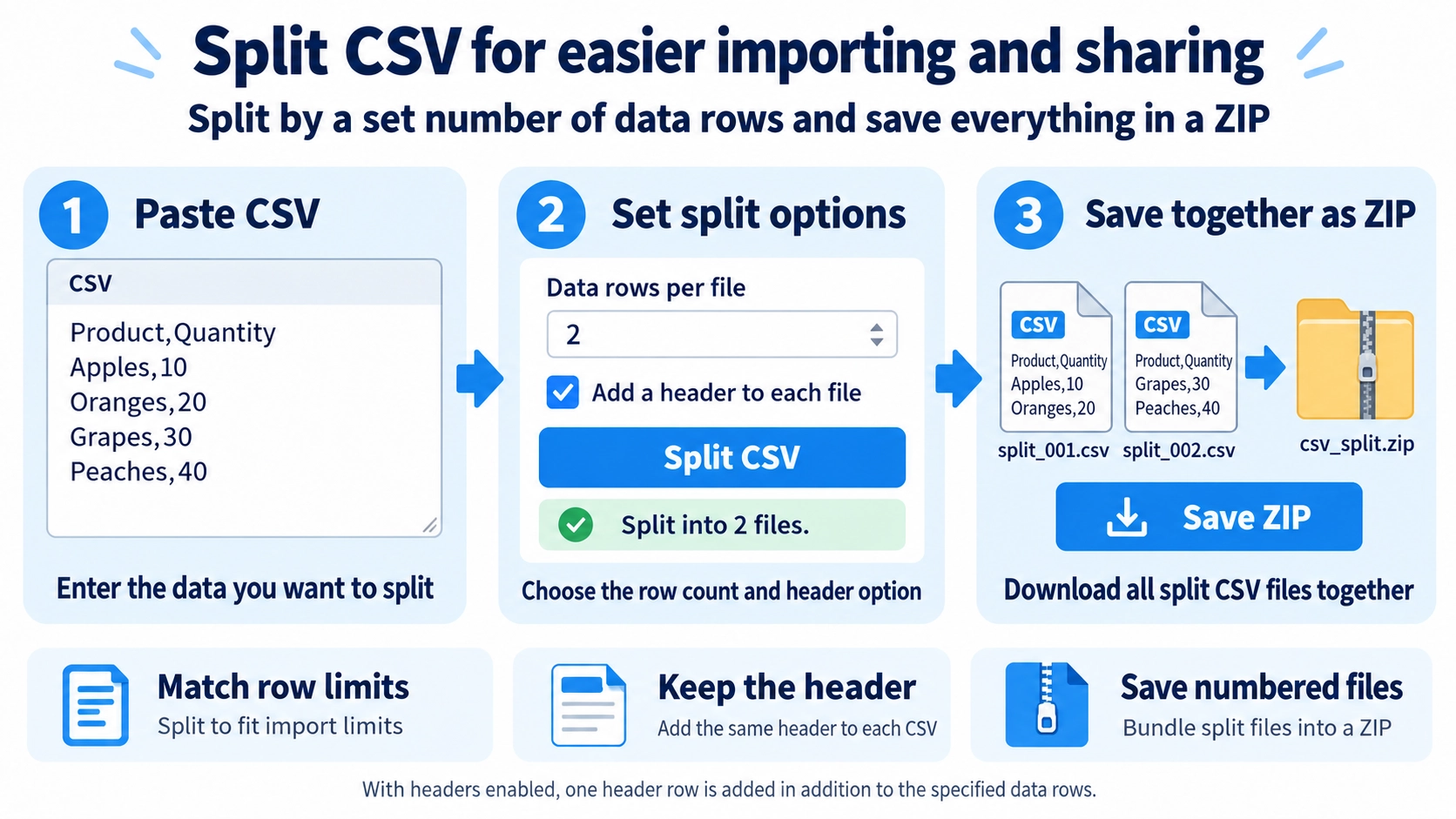
Split pasted CSV data into files with a specified number of rows. Repeat the header in each file and download the results as a ZIP archive.
How to use it
- Paste the CSV data you want to divide into the text area.
- Set the number of data rows per file and choose whether to repeat the header row.
- Click “Split CSV” to generate the separate CSV files.
- Save the resulting files in the ZIP archive.
Supported input and notes
Check whether the header row should be repeated in each split file. Malformed quotes in the source CSV may also cause columns to be parsed incorrectly. The specified row count applies to data rows.
When it is useful
Useful when a spreadsheet import, email attachment, or other system has a practical row limit per CSV file.
Choosing the Split Size
If an upload or processing system has a row limit, set the data rows per file to match that limit. The tool accepts one or more data rows per output file.
Keeping the Header
Keep Header
The first row is treated as the header and repeated at the top of every split CSV.
No Header
The first row is treated as ordinary data and split along with the remaining rows.
Rows Stay Together
The CSV is split by data rows. Line breaks inside properly quoted cells remain part of the cell instead of being treated as a new record.
Header and Row Count
When the header option is enabled, the selected row count applies only to data rows. A setting of 100 can therefore create a file with one header row plus up to 100 data rows.
How Split Files Are Saved
Files are named split_001.csv, split_002.csv, and so on, then collected into csv_split.zip.
FAQ
Does 100 rows include the header?
No. With the header option enabled, 100 means 100 data rows.
Can the first row be treated as normal data?
Yes. Turn off the header option.
Can I save all split files together?
Yes. They are collected into one ZIP file.