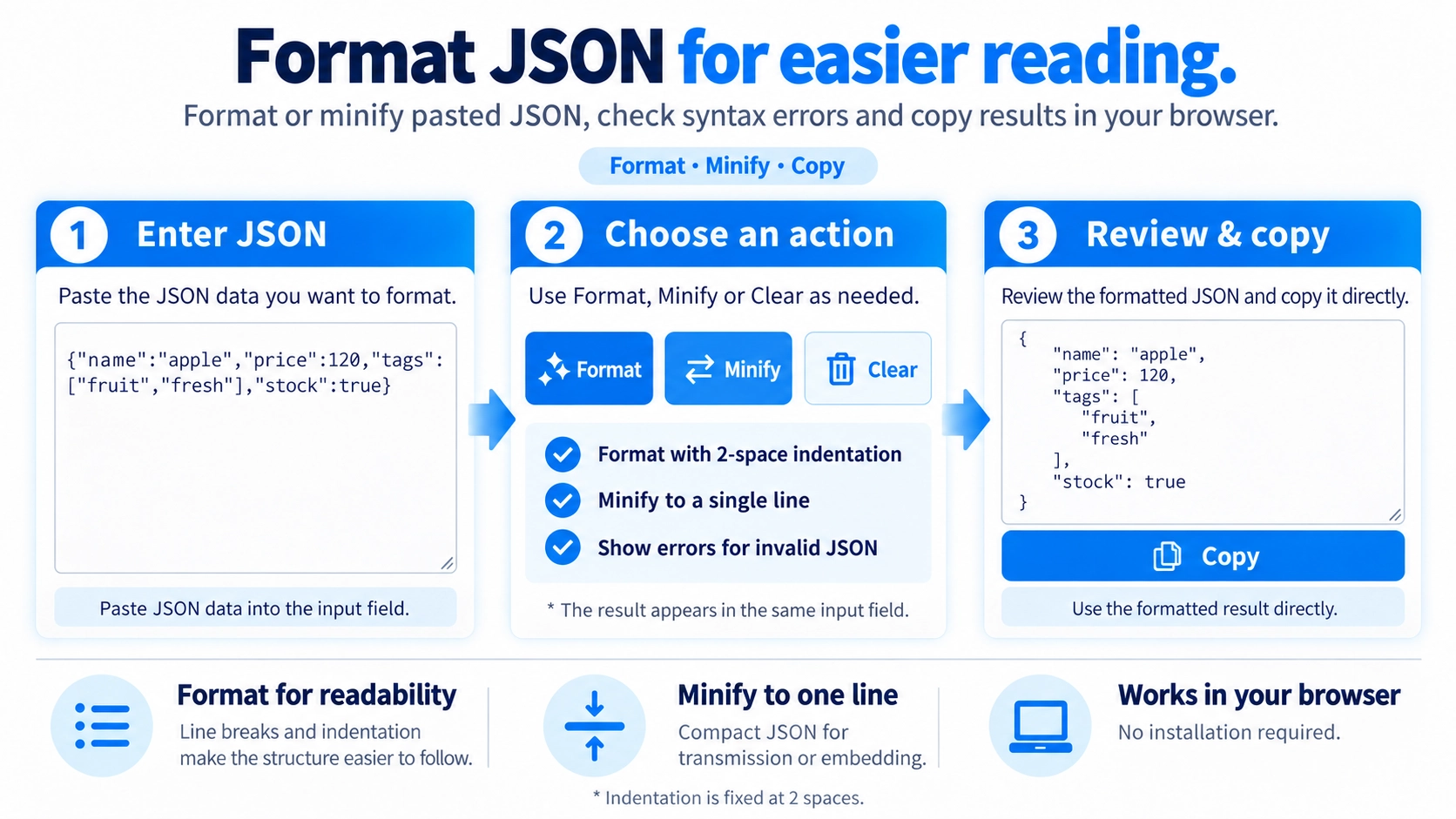
Paste the JSON content into the input area. Choose indentation or minify options if needed.
What this tool does
Format or minify JSON with adjustable indentation, and check for syntax errors in your browser.
How to use it
- Paste the JSON content into the input area.
- Choose indentation or minify options if needed.
- Run the formatter and review the formatted JSON output or any error message.
- Copy the result into your editor or document.
Supported input and notes
Invalid JSON cannot be formatted. Check matching braces and brackets, double-quoted strings, and the placement of commas if an error appears.
When it is useful
Useful when inspecting API responses, debugging JSON syntax, or making nested configuration data easier to scan.
Make JSON Easier to Read
JSON without spacing can be reformatted with line breaks and two-space indentation so nested structures are easier to follow.
Format
Adds line breaks and two-space indentation to make the hierarchy easier to read.
Minify
Removes formatting whitespace and writes the JSON on one line.
Formatting, Not Content Editing
Formatting and minifying are intended to change the presentation of valid JSON, not to add or remove fields.
Invalid JSON Shows an Error
If quotes, commas, or brackets are invalid, the tool shows an error instead of guessing how to repair the JSON.
Be Careful with Very Large Integers
Very long integer values may not remain exact when the JSON is read and written again. For long IDs, check whether the value should be stored as text.
Result Replaces the Input
The formatted or minified result is written back into the same input area, where it can be copied or cleared.
FAQ
Can I change the indentation width?
No. This tool uses two spaces.
Can I put JSON on one line?
Yes. Use Minify.
Does it automatically fix invalid JSON?
No. Invalid JSON is reported as an error.