Provide the input text, data, or file. Choose the tool options that match your goal.
Automatically trim transparent padding
What this tool does
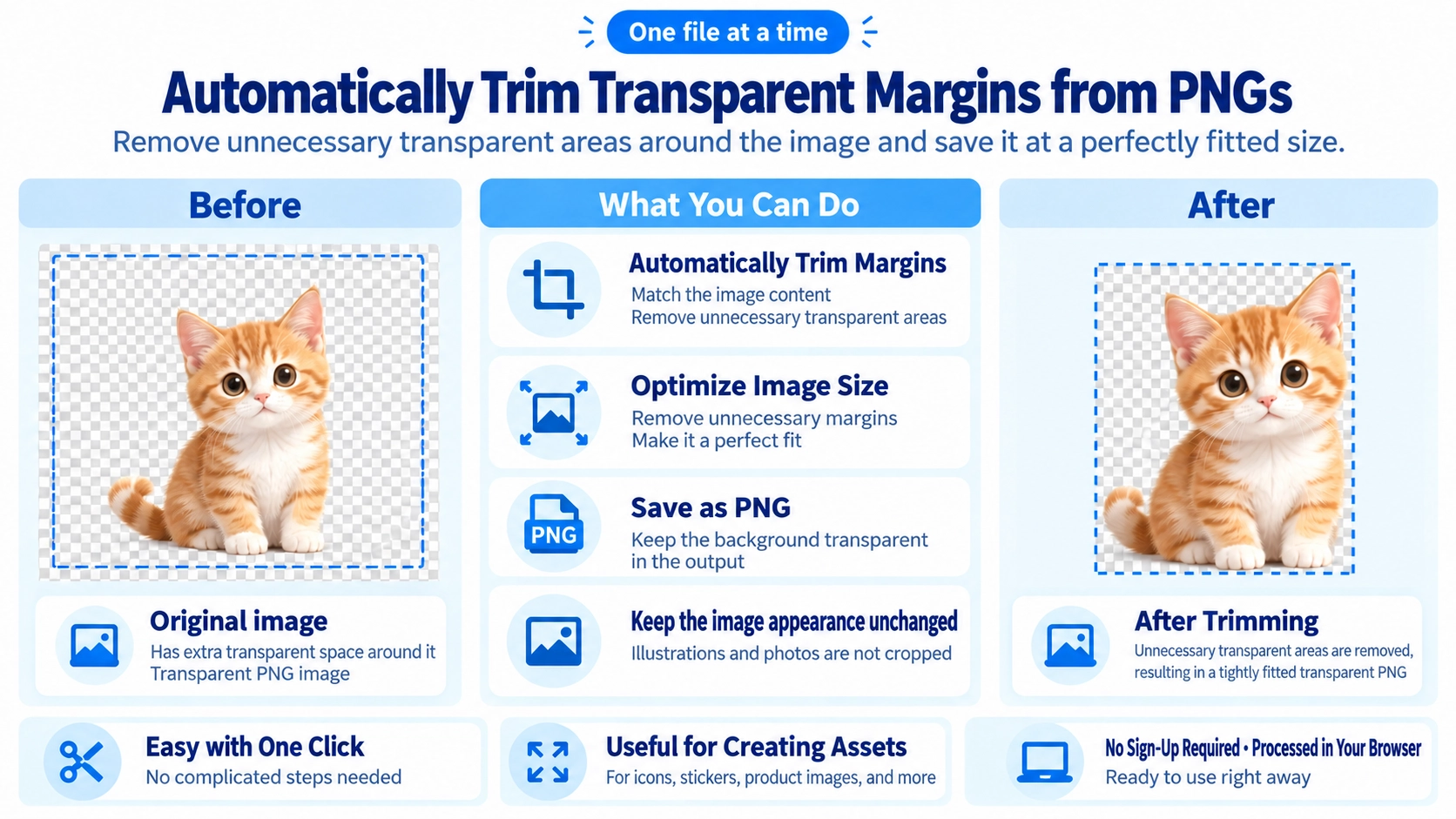
Automatically remove fully transparent margins around one PNG image. Keep semi-transparent pixels and optionally add 0–80 px of padding.
How to use it
- Select a transparent PNG with unwanted blank edges.
- Adjust the amount of padding to keep around the visible image.
- Click “Trim” to remove the excess transparent area.
- Save the trimmed PNG.
Supported input and notes
Processing happens in the browser, so large images can take longer depending on your device. Review the crop and optional padding before using the result.
When it is useful
Useful for removing extra empty space around one logo, icon, or cut-out PNG.
Only fully transparent outer space is detected
The tool scans the outer edges and trims the canvas to the smallest rectangle that still contains pixels with any opacity.
Semi-transparent shadows and glows remain
Any pixel with some opacity is treated as part of the image, so semi-transparent shadows, glows, and soft edges are preserved.
Keep 0–80px of the existing transparent margin
The padding setting controls how much of the original transparent area remains around the detected content.
Transparent areas inside the subject are untouched
Only outer transparent space is trimmed. Transparent holes or internal areas remain unchanged.
A fully transparent PNG is not trimmed
If no non-transparent pixels are found, the tool reports that the PNG contains only transparent pixels and leaves it unchanged.
The canvas gets smaller without resizing the subject
The image content is not scaled. Only the canvas width and height are reduced around the detected content.
Transparent PNG Trim FAQ
Can I process JPG or WebP?
No. This tool accepts PNG only.
Can I see the size before and after trimming?
Yes. Both dimensions are displayed.
What format is the result saved in?
PNG, with _trim added to the filename.