Upload the source file. Choose the pages, layout, or other tool-specific options.
What this tool does
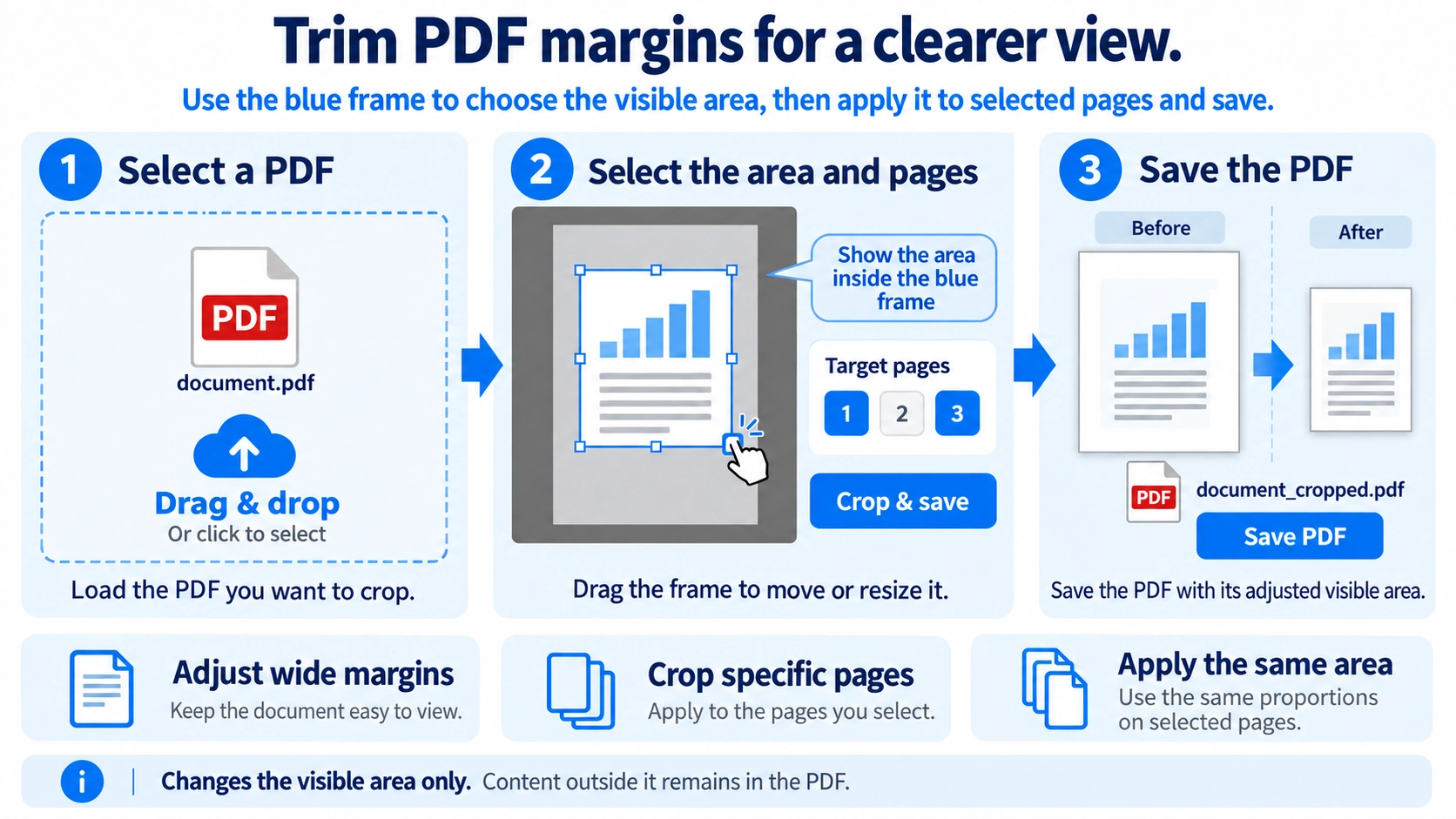
Adjust the visible area of selected PDF pages by dragging a crop rectangle on the preview. Save a PDF with the new crop boundaries; hidden content is not necessarily removed.
How to use it
- Upload a PDF and open a page in the preview.
- Drag the blue crop rectangle to define the area to keep.
- Select the pages that should receive the crop.
- Click “Trim selected pages and save” and download the cropped PDF.
Supported input and notes
Cropping changes the visible page area (CropBox) but does not necessarily delete hidden content. Do not use cropping as a way to permanently remove sensitive information.
When it is useful
Useful for focusing PDF pages on a desired region or hiding excess margins in the visible page area.
Cropping a PDF adjusts the visible page area to remove excessive margins or unwanted edges. It is useful for presentation cleanup, but it should not be confused with secure redaction of sensitive content.
PDF Cropping
Cropping changes the visible area from the top, bottom, left, or right. It is commonly used to reduce wide white margins or trim dark scan edges.
Common Uses
Large scan margins
A scanned page has much more white space than the original sheet.
Dark edges or shadows
Scanner beds or camera captures created black borders near the page edge.
Presentation cleanup
Content appears too small because the visible page includes excessive empty space.
Inconsistent pages
A few pages have noticeably different margins from the rest of the document.
Avoid Over-Cropping
- Identify which sides contain unnecessary space.
- Move and resize the blue crop rectangle gradually instead of making a large cut at once.
- Check page numbers, footnotes, and lines near the edges.
- Open the output at a normal zoom and confirm that no required content is missing.
Black Scan Edges
Text, tables, or handwritten notes can be very close to the dark edge, especially in older or skewed scans. Different pages may also need different margins, so a single aggressive crop value can remove useful content.
Crop vs Delete
Crop
Keeps the page and changes its visible area or margins.
Delete pages
Removes an entire page from the document.
This tool changes only the CropBox (visible area); it does not delete the content outside that box. Do not use cropping to remove confidential or personal information. Use a true redaction or content-deletion method instead.
A4 Page Size
No. Cropping the visible area is not the same as converting the underlying page size to A4. If a submission requires a specific paper size, check that requirement separately.
Final Check
- Text, diagrams, and page numbers are intact
- Margins are not awkwardly uneven
- Portrait and landscape pages still look correct
- Enough margin remains for printing if the PDF will be printed
Does cropped content disappear permanently?
No. This tool changes the PDF CropBox, so content outside the crop remains inside the PDF file even though it is hidden from the normal page view. Do not use cropping as redaction.
Can I set a different crop area for each selected page?
No. This tool applies the single crop rectangle from the preview to every selected page using the same proportional area. If pages need different crop areas, process those page groups separately.
How much margin should I leave on a PDF for printing?
Removing every margin does not necessarily improve printing. Many desktop printers cannot print all the way to the paper edge, and print services may specify safe margins or bleed.
Use the requirements of the printer or print service as the guide, and keep important text and graphics away from the edge unless full-bleed output is explicitly supported.
Can I remove only a black border?
If the black border is at the page edge, set the crop inside that border to exclude it from the visible area. Keep enough space so nearby text or lines are not hidden.
Can I undo a crop if I removed too much?
This tool does not provide an undo command for an exported crop. Keep the original PDF so you can redo the crop. The cropped-out content still remains inside the exported PDF because only the CropBox is changed.