Upload the image file. Adjust the available settings for the tool.
What this tool does
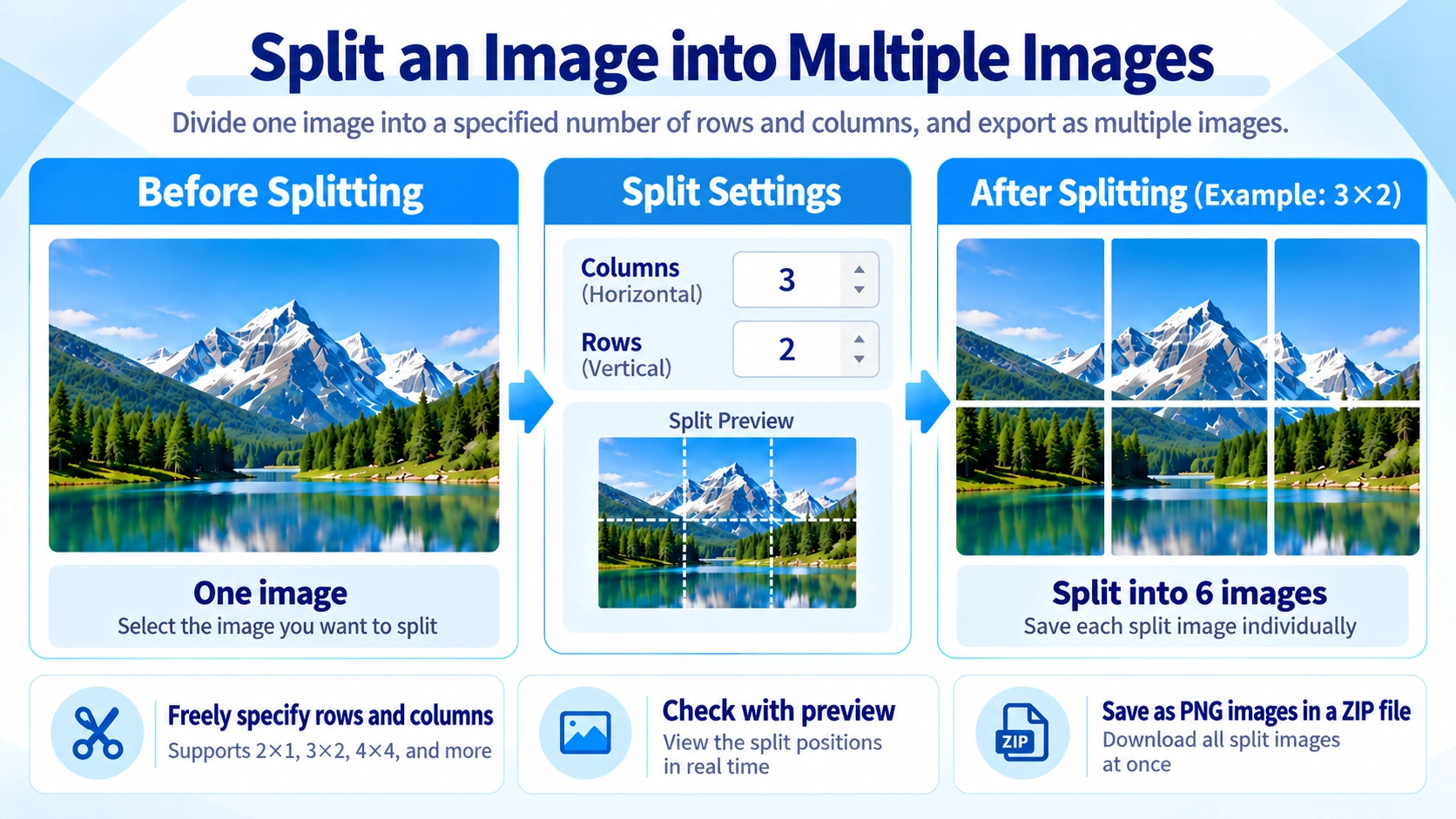
Divide an image into a grid by setting the number of rows and columns. Download the resulting image tiles as a ZIP.
How to use it
- Upload the image you want to divide into tiles.
- Set the number of horizontal and vertical divisions.
- Review the tile arrangement.
- Click “Split and save ZIP” to download the image pieces together.
Supported input and notes
Tiles are divided as evenly as possible; some pixel dimensions may not divide perfectly. Check the tile order after splitting, especially for social-media grids.
When it is useful
Useful for splitting a picture into equal tiles for galleries or other layouts.
Grid Splitting
Choose the number of horizontal and vertical divisions to split the image into a grid. For example, 3 columns and 2 rows produce 6 tiles.
Keeping the Full Image
If the width or height is not evenly divisible by the grid, the remaining pixels are still included so the full source image is kept.
When Sizes Differ Slightly
When a size cannot be divided evenly, the remainder pixels are distributed across the tiles. That can make a few tiles one pixel wider or taller than the others.
No Stretching
Each tile is cropped directly from the source image. The split tiles are not reshaped to a different aspect ratio.
Common Uses
This can also be used to divide one large image into multiple pieces for sequential posting. It is a good idea to check the posting order on the target platform as well.
FAQ
Can the source image edges be lost?
No. The split output includes the right and bottom edges as well.
Are all tiles exactly the same size?
Not always. A few tiles can differ by about one pixel when the dimensions do not divide evenly.
Can I save JPG or WebP tiles?
No. Tiles are exported as PNG and downloaded in a ZIP.