Add the files you want to process. Choose the shared output settings for the batch job.
What this tool does
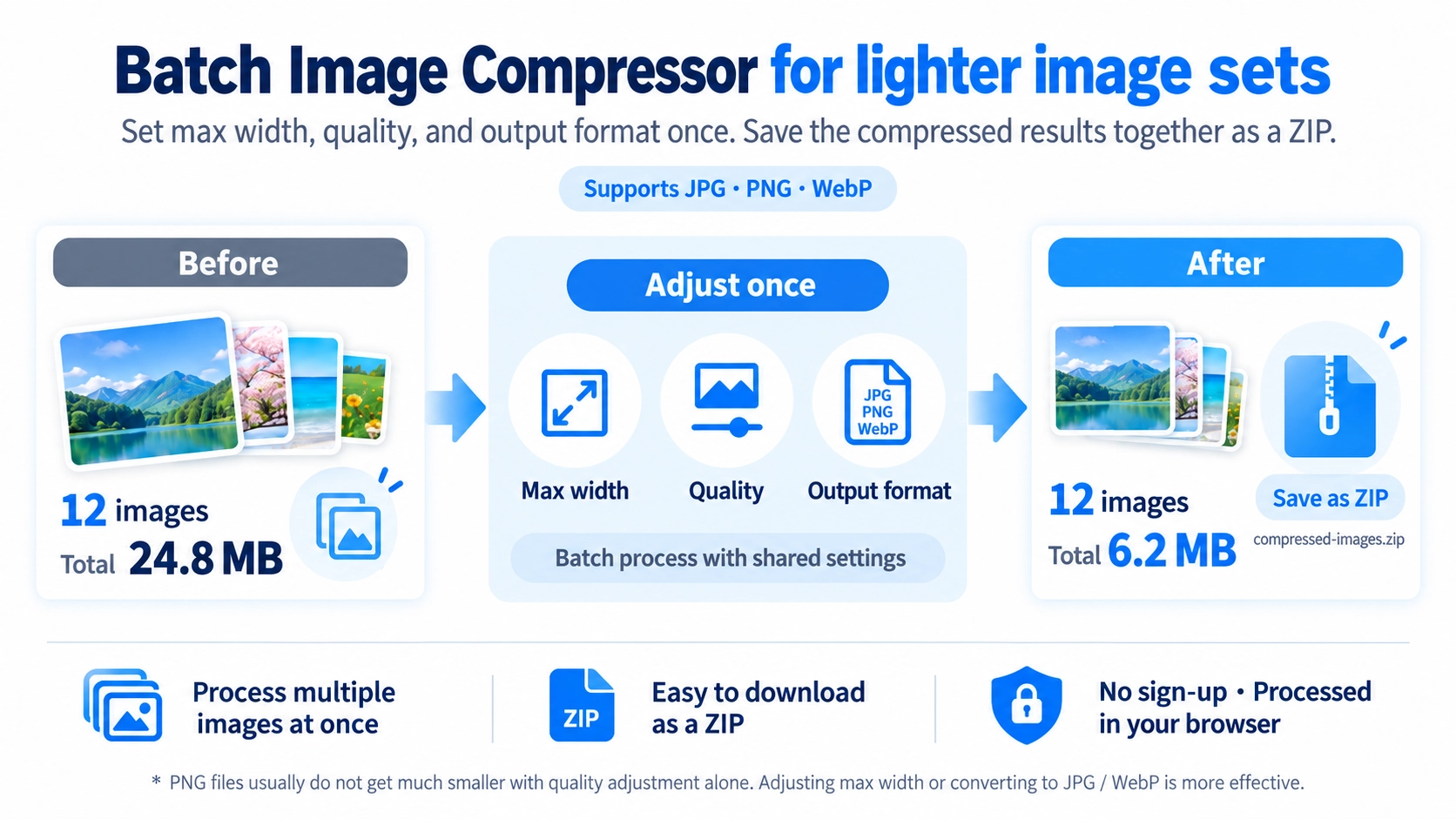
Compress multiple JPG, PNG, or WebP images with shared output settings and download the processed files in a ZIP archive.
How to use it
- Select all the images you want to compress.
- Set the maximum width and quality, and choose JPG, PNG, or WebP output.
- Click “Save as ZIP” to process the images.
- Save the ZIP archive containing the compressed files.
Supported input and notes
Supports mainly JPG, PNG, and WebP. Processing a large batch may take time and use more memory, so keep the page open until it finishes. PNG does not benefit from the quality slider in the same way as JPG or WebP.
When it is useful
Useful for reducing the size of multiple photos before publishing or sharing them.
Check Image Dimensions When Files Are Oversized
When reducing file size, lowering quality is not the only option. It is also worth checking whether the image is wider than you actually need. This tool reduces only images that exceed the selected maximum width.
Wider Than the Maximum
The image is reduced to the selected width while keeping its aspect ratio.
Smaller Than the Maximum
The original width is kept, so smaller images are not enlarged and softened unnecessarily.
Lowering Quality Does Not Shrink PNG
For JPG and WebP, lowering quality can help reduce file size. For PNG, this tool does not use the quality setting to control compression, so moving the quality slider does not make the PNG smaller.
Changing Format Can Affect Transparency
If a batch contains PNG or WebP images with transparent areas, saving everything as JPG removes that transparency. Check whether a single output format is appropriate before processing mixed image types.
The Same Settings Can Produce Different Results
Even with the same quality setting, final file size and visible change vary with image dimensions, detail, and color variation. After a large batch, open a few representative files to make sure text and fine detail still look acceptable.
Batch Compression and Batch Resize Serve Different Goals
Batch Compression
Focuses on reducing file size. In addition to maximum width, JPG and WebP quality can be adjusted.
Batch Resize
Focuses on changing image width across multiple files rather than fine-tuning compression quality.
Split Very Large Batches When Needed
Processing many high-resolution images at once can increase memory use and processing time. If the browser feels slow, process the files in smaller groups.
FAQ
Will the same quality setting make every file the same size?
No. Final file size depends on the original image dimensions and content.
Are smaller images enlarged to the maximum width?
No. Images already below the selected maximum width keep their original width.
Why does lowering PNG quality not reduce its file size?
This tool does not use the PNG quality setting to control compression. Reduce the maximum width or choose another output format when appropriate.