Upload the image file. Adjust the available settings for the tool.
JPG / PNG / WebP / GIF supported
What this tool does
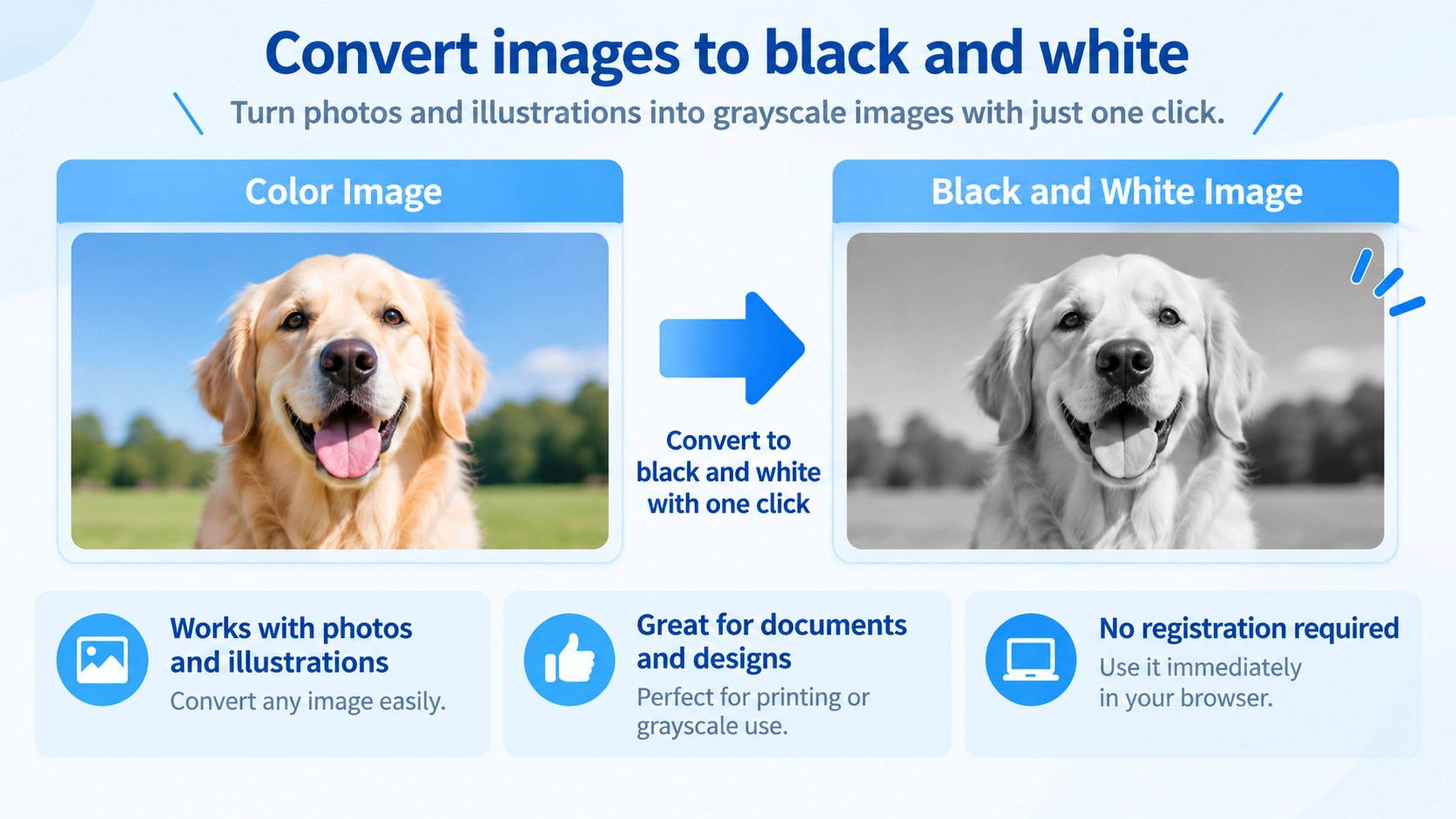
Convert a color image to grayscale using different conversion methods, with adjustable brightness and contrast.
How to use it
- Select an image and choose a grayscale conversion method.
- Adjust brightness, contrast, or color-channel weights as needed.
- Review the grayscale preview and select PNG, JPG, or WebP.
- Click “Convert” to save the result.
Supported input and notes
Increasing contrast can help some subjects stand out, but may hide detail in dark areas. Adjust brightness and contrast while checking the preview.
When it is useful
Useful for producing black-and-white versions of photos with adjustable tone.
Grayscale Methods Produce Different Light and Dark Balance
Converting a color image to grayscale removes color, but different source colors can become different shades of gray. As a result, people, sky, plants, and other areas may look lighter or darker depending on the selected method.
Three Conversion Methods
Luminance
Accounts for how bright different colors appear to the human eye. It is a good starting point when you want a natural-looking result.
Average
Treats red, green, and blue evenly when producing gray tones.
Lightness
Uses the brightest and darkest color components to determine the gray value, which can produce a different tonal balance.
Custom Settings Change How Each Color Contributes
Adjusting the red, green, and blue ratios changes which colors appear lighter or darker in the grayscale result. For example, increasing the red ratio can make reddish areas appear relatively brighter.
Brightness and Contrast Do Different Jobs
Brightness
Makes the whole image lighter or darker.
Contrast
Increases or reduces the difference between light and dark areas.
Grayscale Does Not Always Make the File Smaller
Converting to grayscale does not always reduce file size. File size also depends on the output format and the image itself, so grayscale conversion should not be treated as image compression.
Transparency Depends on the Output Format
PNG and WebP can preserve transparent areas, while JPG cannot keep transparency.
FAQ
Is grayscale the same as pure black and white?
No. This tool uses many shades of gray rather than reducing the image to only black and white.
Can reddish areas be made brighter?
Yes. Increasing the red ratio in the custom settings can make reddish areas appear relatively brighter.
Will grayscale always make the file smaller?
No. File size also depends on the image and the selected output format.