Upload the image file. Adjust the available settings for the tool.
JPG / PNG / WebP supported
What this tool does
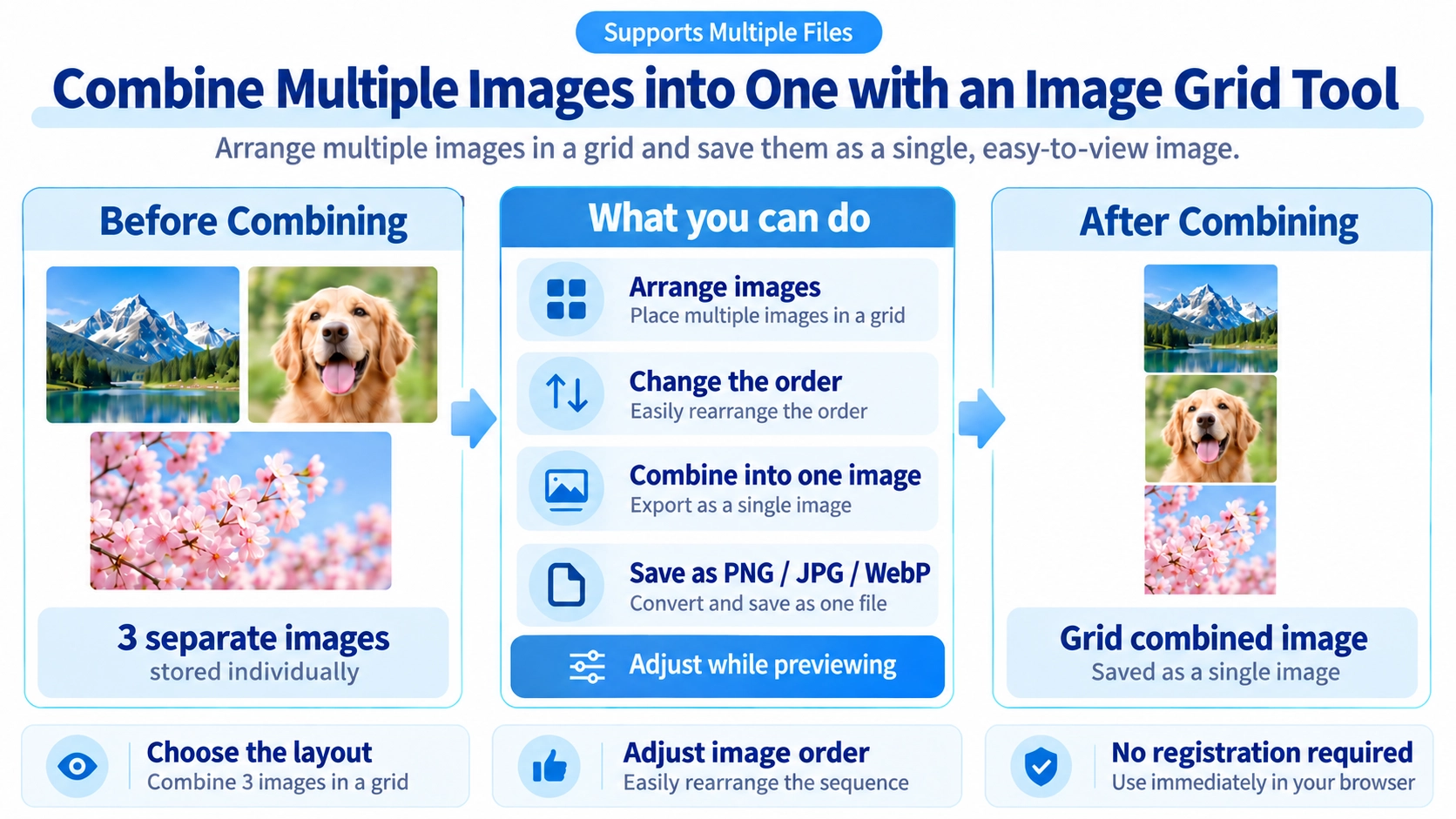
Combine several images into a single grid image. Choose from 12 layouts, from 1×2 to 4×3, and customize spacing and background color.
How to use it
- Upload the photos to combine, and add more images if necessary.
- Reorder the images and set cell height, spacing, and background colors.
- Choose how images fit into their cells and select the output format.
- Click “Output” to save the completed image grid.
Supported input and notes
Common image formats include JPG, PNG, and WebP. Cell sizing, image order, and fitting mode change the result; “Stretch” can distort images, so preview before exporting.
When it is useful
Useful for comparison sheets, multi-photo summaries, product galleries, and simple grids.
Grid Layouts
You can arrange multiple images into one output using layouts such as 1×1, 1×2, 2×1, 2×2, 1×3, 3×1, 2×3, 3×2, 3×3, 1×4, 4×2, and 4×3.
All cells are square, and the selected cell size is used for both width and height.
Image Order
Loaded images can be reordered in the list. The grid fills from the top-left using the current list order.
Placement Modes
Contain fits the full image inside the cell. Crop fills the cell and trims overflow. Stretch fills the cell without preserving the original aspect ratio.
Gaps and Padding
You can set the gap between cells from 0 to 60px and the outer padding from 0 to 80px. The overall canvas background and the cell background can also be set separately.
How Output Size Works
The final image size is determined by the number of rows and columns, the cell size, the gap size, and the outer padding. The preview shows the resulting dimensions before export.
When Images Are Missing
If you load fewer images than the chosen layout can hold, the remaining cells display only the selected cell background color.
FAQ
Can I change the image order?
Yes. You can drag images in the list to reorder them.
Can I place images without cropping them?
Yes. Choose Contain to keep the full image visible inside the cell.
Which output formats are available?
You can save as JPG, PNG, or WebP. JPG and WebP are exported with quality 0.92.