Upload the image file. Adjust the available settings for the tool.
What this tool does
Combine multiple photos into one collage. Choose a layout and customize spacing, margins, and background color.
How to use it
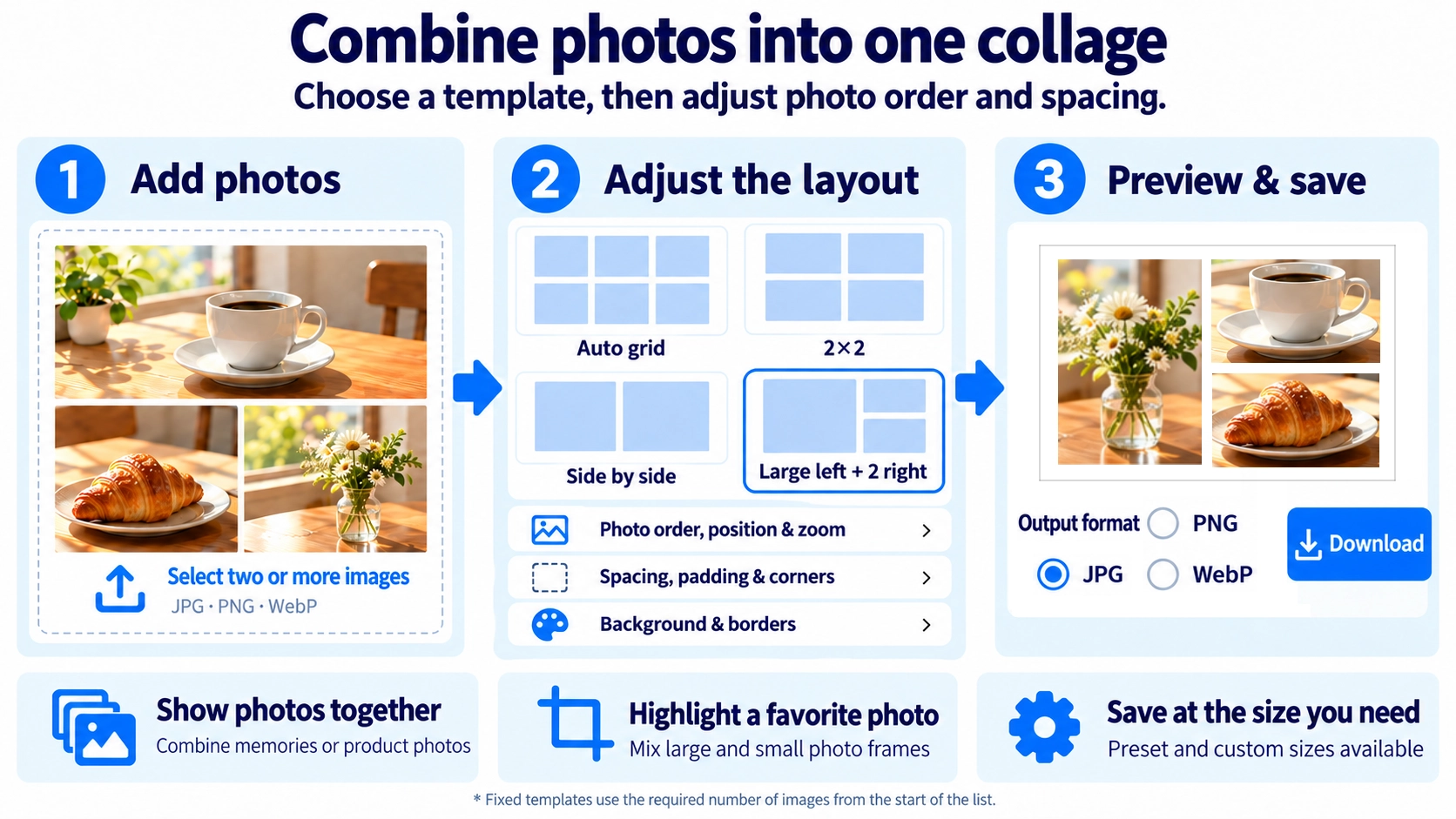
- Upload two or more photos and choose a collage template.
- Select photos to adjust their placement, scale, and order within the layout.
- Set the output dimensions, spacing, corners, background, and file format.
- Click “Create collage image” and download the result.
Supported input and notes
The number of photos and chosen layout determine how much of each image is visible. For photos with important fine details, adjust the template, spacing, and number of columns.
When it is useful
Useful for creating image collections for posts, product galleries, mood boards, and announcements.
Choose a Layout for the Number of Photos
Two photos and a collection of five or six photos call for different layouts. Choose an even grid if every photo should have similar prominence. If one photo is the main focus, pick a template with a larger featured frame.
Give photos equal weight
Auto Grid, 2×2, and 3×3 arrangements work well when you want photos to appear at similar sizes.
Highlight one photo
A layout such as “Large left + 2 right” gives the main image more space while keeping supporting images visible.
Reposition Photos That Get Cropped
Each photo fills its frame. When the photo and frame have different aspect ratios, some edges may be hidden. If a face or part of a product is cut off, select that photo and move its position until the important detail fits within the frame.
Zoom In to Emphasize a Subject
You can zoom individual photos independently. Zooming makes a person or product more prominent and shows less background, but also hides more of the original image outside the frame. Check each photo before finalizing your collage.
Photo Order Changes What Stands Out
Photos fill the template frames in order, starting with the first image. In layouts that mix large and small frames, reordering the images can change which photo is emphasized. Try adjusting the order before choosing a different template.
Image Collage FAQ
Can I create a collage from just one image?
No. This tool requires at least two images.
Can I change the final image dimensions?
Yes. Choose from Instagram square or portrait, OGP / X, and Full HD presets, or enter a custom width and height.
Can I remove the gaps between photos?
Yes. Set spacing to 0 px to place the photos edge to edge.