Upload the image file. Adjust the available settings for the tool.
JPG / PNG / WebP supported
What this tool does
Crop a photo into a circular profile icon for social media, chat, or work profiles, with adjustable position and output size.
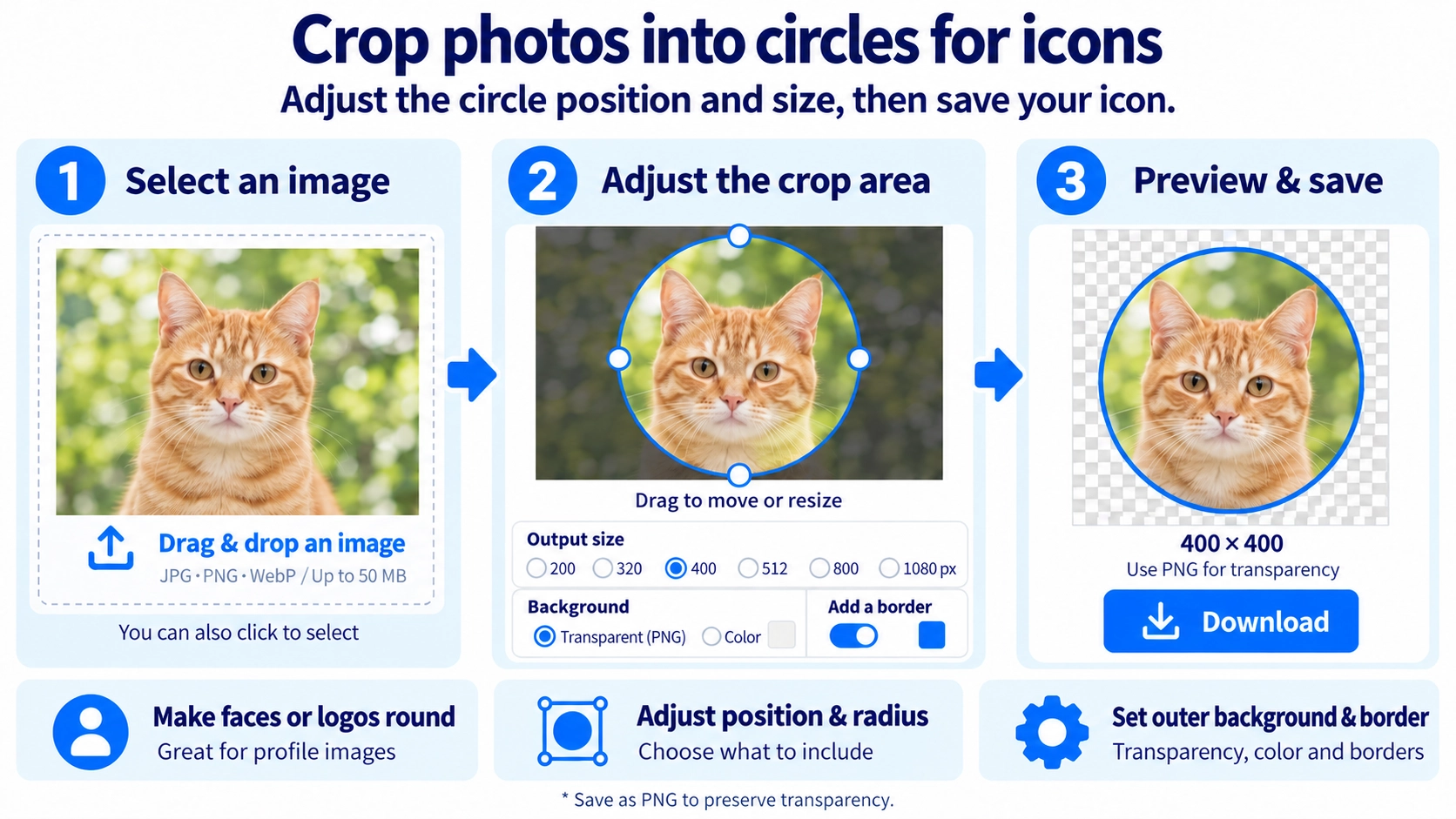
How to use it
- Choose an image to turn into a round icon.
- Set the circle position, size, and output dimensions using the available controls.
- Choose a transparent or colored background and adjust the border if needed.
- Select PNG, JPG, or WebP, then click “Output” to save the icon.
Supported input and notes
Keep the face or subject large enough and check that it is centered for a profile icon. If the area outside the circle should be transparent, choose PNG or another transparency-capable output format.
When it is useful
Useful for making profile pictures and round icons with consistent dimensions and background styling.
Position the Circle Even When the Subject Is Off-Center
If a person is not centered in the original photo, move the crop circle up, down, left, or right. Centering the face or logo within the circle can make the final icon feel better balanced.
A Smaller Circle Crops More of the Photo
Reducing the circle size can make a face or product appear larger, but hair, shoulders, or the edges of a logo may fall outside the crop. Adjust the radius while checking which parts need to remain visible.
Choose PNG if You Need a Transparent Background
To leave the area outside the circle transparent, save to a format that supports transparency. JPG cannot preserve transparent pixels, so PNG is a straightforward choice for a transparent circular icon.
Thicker Borders Leave Less Room for the Photo
Adding a border reduces the space available for the image inside the circle. A thicker border can make a face or logo look smaller, so adjust the width with the subject in mind.
Circle Image Crop FAQ
Is the output file itself circular?
No. The file is square, but making the area outside the circle transparent gives it the appearance of a circular icon.
Can I move the circle before saving?
Yes. Drag the circle or adjust its X and Y position and radius as many times as you need before exporting.
Can I change the border color?
Yes. When you add a border, you can change both its width and color.