Upload the image file. Adjust the available settings for the tool.
What this tool does
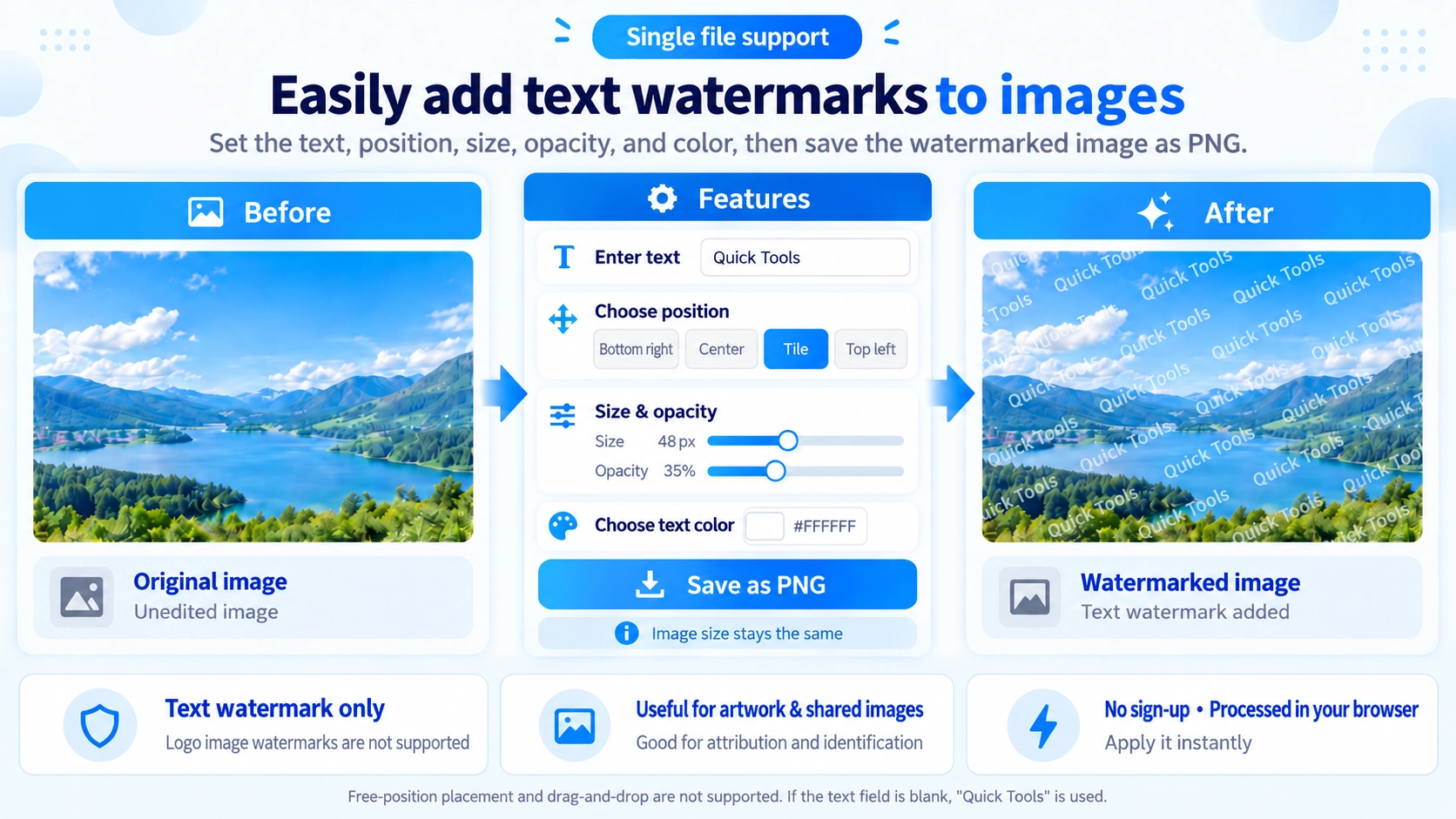
Add a text watermark to an image. Adjust the text, position, size, opacity, and color, then preview and save the watermarked image.
How to use it
- Upload the photo to watermark.
- Enter the watermark text and choose its size, opacity, and color.
- Select a position or tiled layout and check the preview.
- Click “Output” to save the watermarked image.
Supported input and notes
This tool currently adds text watermarks, not image watermarks. Balance legibility and deterrence by adjusting the watermark opacity and placement.
When it is useful
Useful for adding a visible text attribution or repeated watermark to photos.
Text Watermarks Only
This tool adds text watermarks only. It does not add a logo or another image as a watermark. You can set the text, size, opacity, color, and placement.
Watermark Position
Bottom Right
Places the text near the lower-right corner with padding based on the image size.
Center / Top Left
Places the watermark at one of these fixed positions. Free dragging and arbitrary coordinates are not supported.
Tile
Repeats angled text across the whole image at regular intervals.
Size and Opacity
Text size
Set the font size from 12 to 160px.
Opacity
Set opacity from 5% to 100%. It cannot be reduced to 0%.
Blank Text
If the text is blank, the tool uses “Quick Tools” as the watermark text. Leaving it empty does not produce an image with no watermark.
Image Size
Adding a watermark does not change the image dimensions. The output keeps the same width and height as the source image.
PNG Output
This tool exports PNG only.
Copy Protection
Logo Overlays
This page supports text watermarks only. To place a logo or another image over the source image, use the Image Overlay tool.
FAQ
Can I use Japanese or other text?
Yes. The watermark uses normal text input and is drawn onto the canvas.
Can I drag the watermark to any position?
No. Choose from Bottom Right, Center, Tile, or Top Left.
Can opacity be set to 0%?
No. The minimum is 5%.
Can I save the result as JPG?
No. The output format is PNG.