Add the files you want to process. Choose the shared output settings for the batch job.
Horizontal flip / vertical flip supported
What this tool does
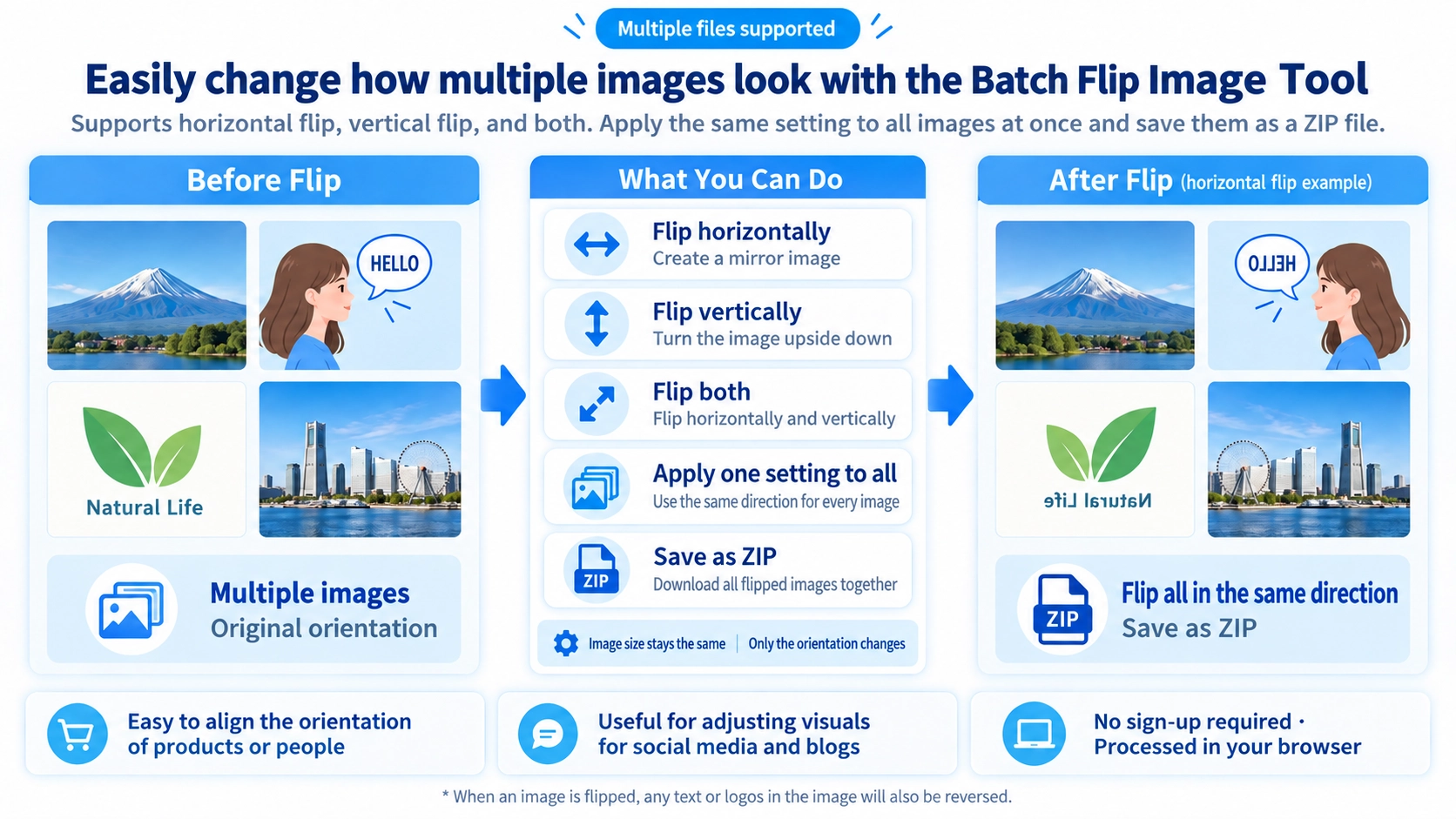
Flip several images horizontally, vertically, or in both directions using the same setting, then download the results together as a ZIP.
How to use it
- Select the images to flip in one batch.
- Choose horizontal, vertical, or both directions.
- Click “Flip” to apply the same direction to each image.
- Save the results together as a ZIP archive.
Supported input and notes
The same flip setting is applied across the batch. Check the direction before downloading the ZIP.
When it is useful
Useful for applying a consistent mirror direction to a whole image collection.
Batch Flip
Add multiple images, choose Horizontal, Vertical, or Both, and the same mode is applied to every image.
Shared Direction
The flip mode is shared by the whole batch. If some images need horizontal flipping and others need vertical flipping, process them in separate groups.
Image Size
Each flipped image keeps its original width and height.
Output Format
JPEG
JPEG inputs are saved with a .jpg extension.
WebP
WebP inputs are exported as WebP.
Other formats / GIF
Other formats use PNG output. GIF is explicitly converted to PNG in the batch code.
Animated GIFs
GIF animation is not preserved. GIF files are processed as a single still image and saved as PNG.
ZIP Download
The processed files are packaged into a ZIP. Each output name adds “_flip” before the extension.
Single vs Batch
Preview one image
Image Flip shows before-and-after previews for one image.
Process a batch
This page applies one shared direction to multiple images and downloads them in a ZIP.
FAQ
How many images can I add?
The code does not set a fixed file-count limit. Large batches still use more browser memory and take longer because images are processed sequentially.
Can I change JPG or WebP quality?
No quality control is exposed on this page. Canvas export uses a fixed value of 0.92 for formats that use the quality argument.
Are original file names retained?
The base file name is retained and “_flip” is appended before the output extension.
Are the source files modified?
No. New processed files are generated and packaged into the ZIP.